SFTP lets you upload and download files on your game server with a program like FileZilla or WinSCP. It's the best way to move big files such as worlds, modpacks or backups.
1. Find your SFTP details
- Log in to the game panel and open your server.
- Go to Settings in the menu.
- Under SFTP Details you find the server address with the port, and your username.
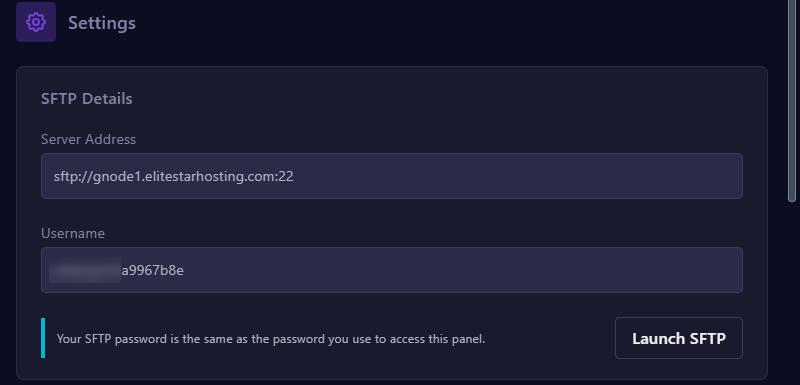
Your username is your panel username, a dot and the code of your server. Your password is your game panel password.
Do you always log in with Login with your billing account and have you never set a panel password? Then click Forgot password? on the panel login page and set one. That is the password you use for SFTP.
2. Connect with FileZilla
- Download and install FileZilla.
- Open File > Site Manager and click New site.
- Set Protocol to SFTP - SSH File Transfer Protocol.
- In Host, fill in the server address without
sftp://and without the port, for examplegnode1.elitestarhosting.com. In Port, fill in the number after the colon. - Fill in your username and your panel password and click Connect.
You now see your server files on the right. Drag files from your computer into that window to upload them.
Using WinSCP? Then the Launch SFTP button opens the connection straight in that program.