A backup is a copy of all your server's files. Make one before you change something big, such as a new version, a modpack or a large plugin. How many backups you can keep depends on your plan.
Creating a backup
Go to Backups in the menu and click Create backup.
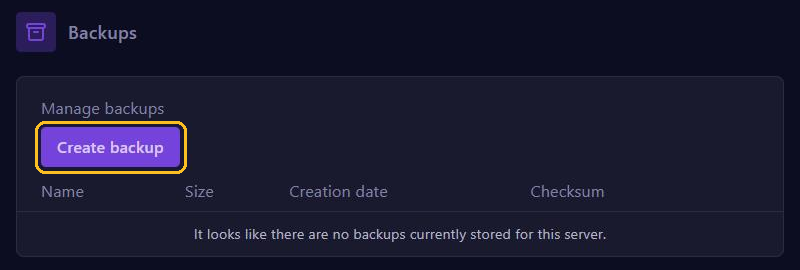
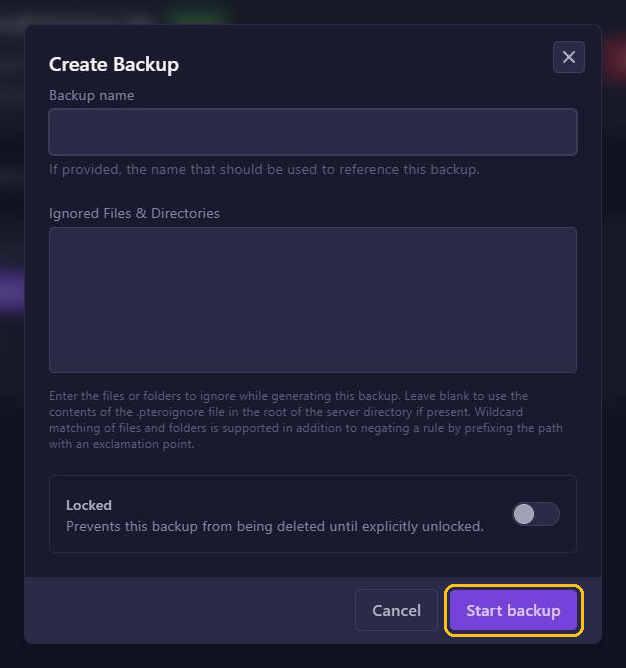
In the window that opens:
- Backup name: optionally give the backup a name, so you can find it later.
- Ignored Files & Directories: leave out files or folders, such as big log files. Leave it empty to include everything.
- Locked: turn this on if the backup must not be deleted by accident.
Click Start backup. The backup appears in the list with its size and date. On a big server this can take a while.
Restoring a backup
- Go to Backups.
- Click the three dots ... next to the backup.
- Choose Restore and confirm.
Note: restoring puts the files from the backup back on your server. Anything you changed after making the backup is lost.
In the same menu you can also download (Download), lock (Lock) or delete (Delete) a backup.
Automatic backups
Let the panel make backups for you, for example every night. Read how in Automatic restarts and backups with schedules.
Tips
- Reached your limit? Delete an old backup first. A locked backup has to be unlocked first.
- Keep important backups on your own computer too, with Download.
- A backup contains your server's files, not your databases.