With Schedules the panel runs tasks at fixed times: restarting your server, sending a command or making a backup.
Creating a schedule
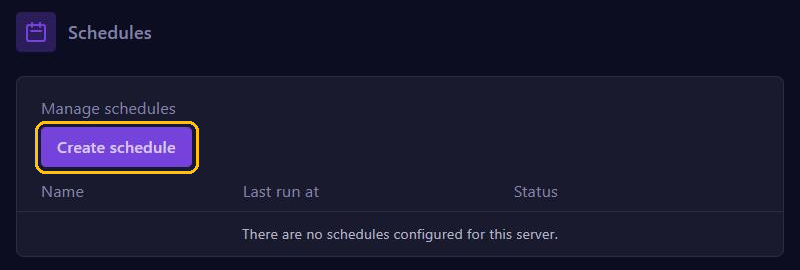
Go to Schedules in the menu and click Create schedule.
- Give the schedule a name, for example Daily restart.
- Use Minute, Hour, Day of month, Month and Day of week to choose when it runs. Preview shows the chosen time straight away.
- Leave Only When Server Is Online on if the tasks should only run while your server is running.
- Leave Schedule Enabled on and click Create schedule.
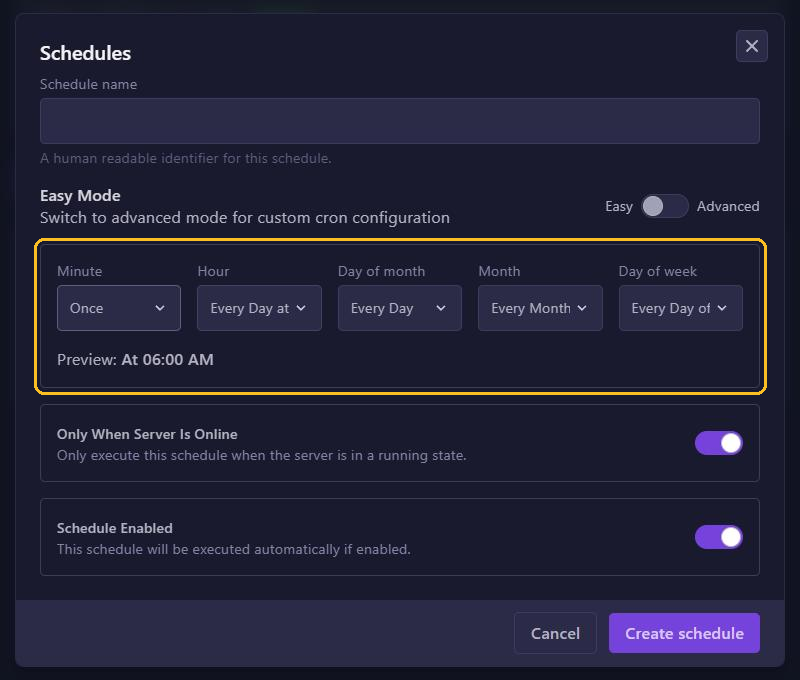
Need a time that isn't in the lists? Switch to Advanced and enter a cron time yourself. For example, 0 4 * * * means every day at 04:00.
Adding tasks
A schedule only does something once you add tasks to it:
- Click your new schedule in the list.
- Click New Task and choose what should happen.
- Save the task and add more tasks if needed.
There are three kinds of tasks:
- Send command: send a command to the console, for example
say The server restarts in 1 minute. - Send power action: start, restart or stop your server.
- Create backup: make a backup.
The time offset sets how many seconds a task waits after the previous one.
Example: restart every night, with a warning
- Create a schedule for every day at 06:00.
- Task 1: Send command with
say The server restarts in 1 minute. - Task 2: Send power action with Restart and a time offset of 60 seconds.
Players get a warning first, and your server restarts a minute later.