With Versions you install another Minecraft version or another server type in a few clicks, for example from Vanilla to Paper.
Before you start
- Make a backup. Without one, a version change can't be undone.
- Going back to an older version can damage your world. Only do that with a backup or a fresh world.
- Plugins and mods must support the new version.
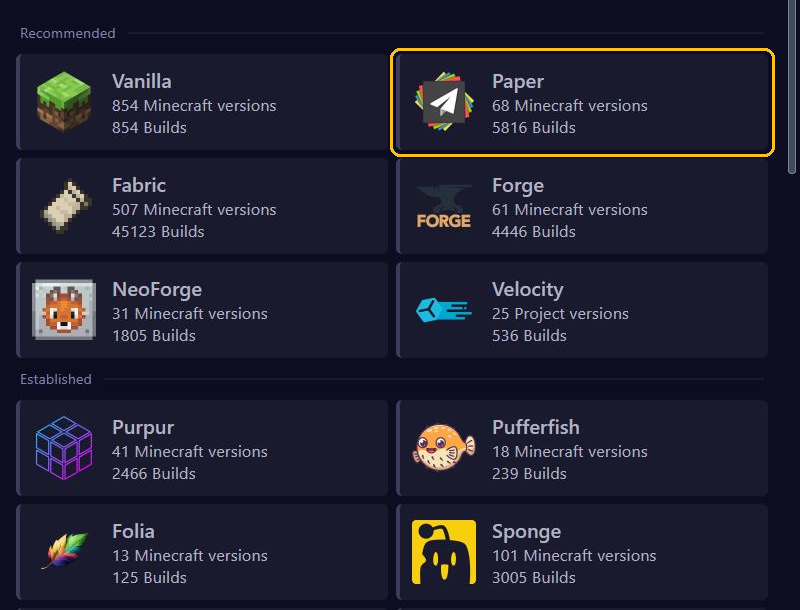
Which server type should you pick?
- Paper or Purpur: for plugins. The best choice for most servers.
- Fabric, Forge or NeoForge: for mods.
- Vanilla: Minecraft as Mojang makes it, without plugins or mods.
- Velocity: a proxy that links several servers together.
Installing a version
1. Choose the server type
Open your server in the game panel, go to Versions and click the server type you want.
2. Choose the Minecraft version
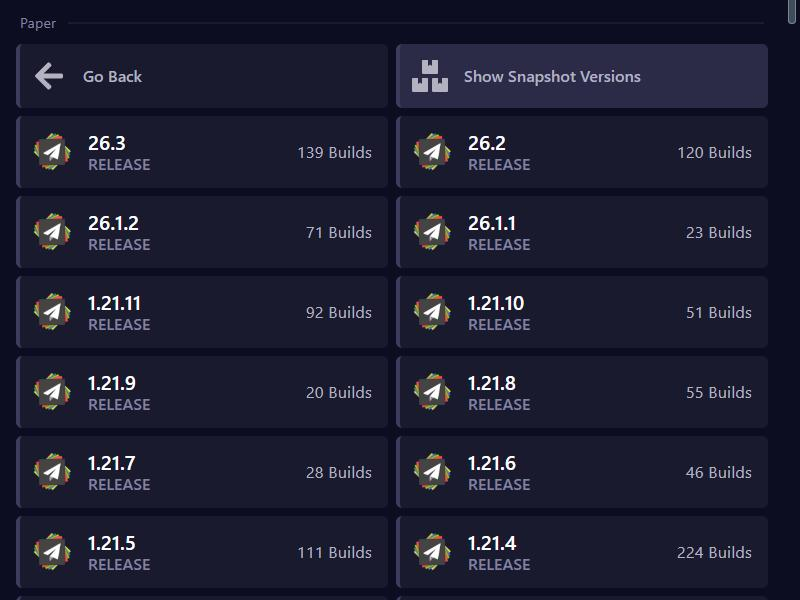
Click the version you want to install. Show Snapshot Versions also shows test versions, and Go Back takes you back to the server types.
3. Install
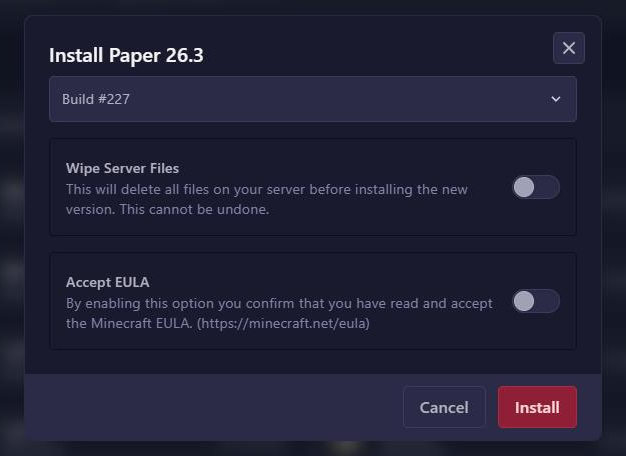
In the window that opens:
- Pick the build under Build. The top one is the newest.
- Leave Wipe Server Files off, unless you want to start completely fresh. This option deletes all files on your server, including your world.
- Turn on Accept EULA to agree to the Minecraft EULA.
Click Install. Then start your server and check the console to see that it starts properly.
Something went wrong?
Restore your backup under Backups, or get in touch and we'll help you out.