The File Manager lets you manage your server's files in your browser. You open it through Files in the menu.
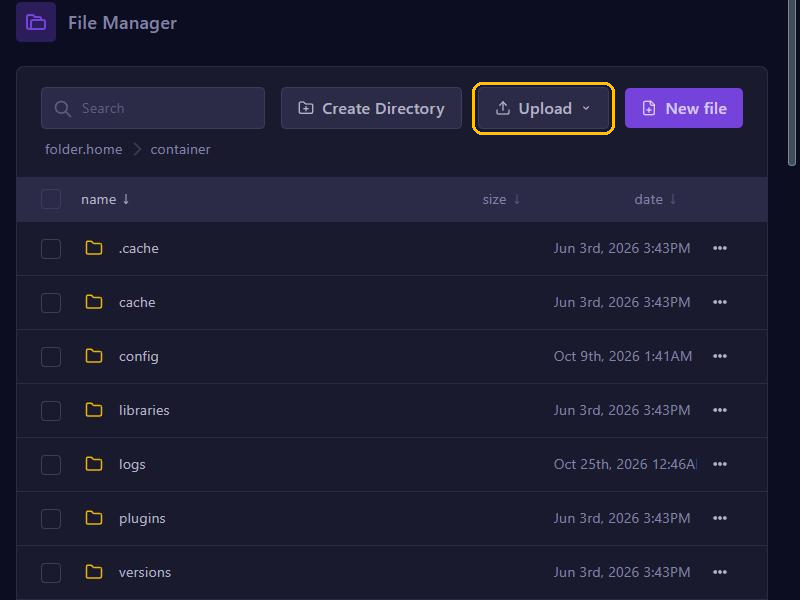
Click a folder to open it. The path at the top shows which folder you are in; click an earlier folder there to go back.
Uploading files
- Go to the folder the file should go in, for example plugins.
- Click Upload.
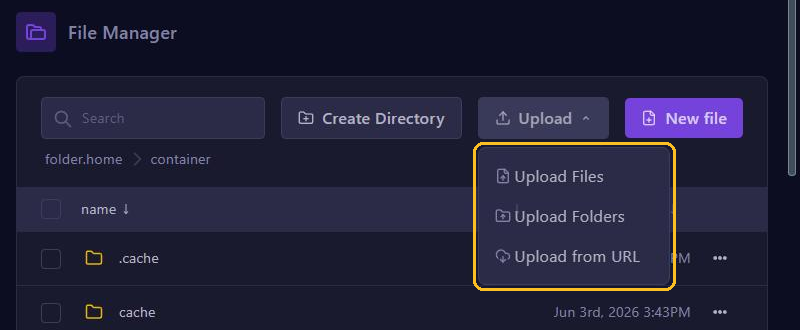
- Choose Upload Files for single files, Upload Folders for a whole folder or Upload from URL to fetch a file straight from a download link.
Big files, such as worlds or modpacks, move faster and more reliably over SFTP.
Editing a file
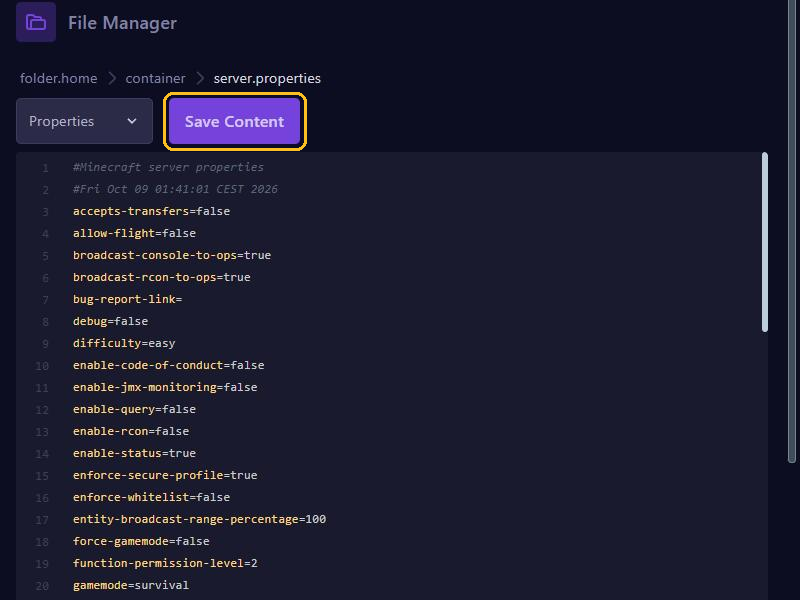
Click a file to open it in the editor. Change what you need and click Save Content. Most settings only take effect after you restart your server.
Rename, move, download and more
Click the three dots ... next to a file or folder:
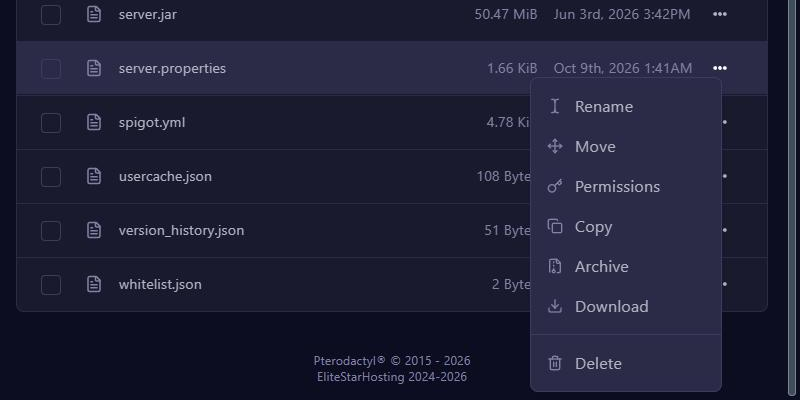
- Rename: give it another name.
- Move: move it to another folder.
- Copy: make a copy.
- Archive: pack it into an archive. Handy for downloading many files at once.
- Download: download it to your computer.
- Delete: delete it. This can't be undone, so make a backup first.
For an archive, such as a .zip file, this menu also has Unarchive to unpack it on the server. Want to move or delete several files at once? Tick them with the boxes on the left.
Tips
- Stop your server before you replace world files.
- Create a new folder or an empty file with Create Directory and New file.
- Looking for a file? Type its name in the search box at the top left.