The game panel is where you manage your game server: starting and stopping, files, backups and more. You open it at gamepanel.elitestarhosting.com.
Logging in
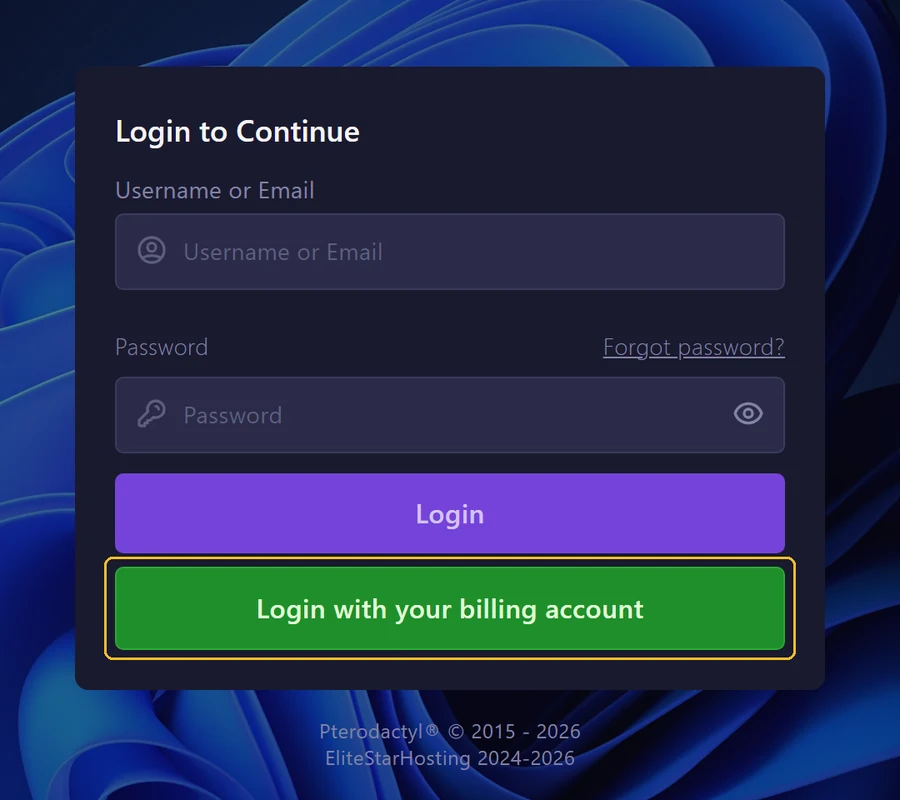
There are two ways to log in:
- Login with your billing account (recommended): you log in with the same email address and password as in our client area. You are then taken straight to the panel.
- Username or Email and Password: you log in with the details of your panel account.
Forgot your panel password? Click Forgot password? and you will get an email to set a new one.
Opening your server
After logging in you see all your servers. Each card shows the server address, the status and the CPU, memory and storage usage. Click Manage server to manage it.
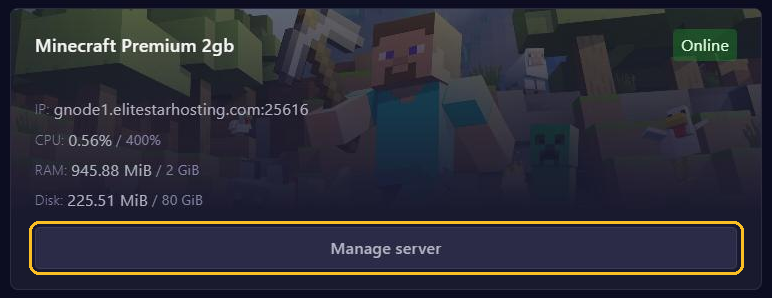
The address next to IP, such as gnode1.elitestarhosting.com:25616, is the address players connect to. The number after the colon is the port.
Finding your way in the menu
On a computer the menu is on the left. On your phone you open it with the ☰ button at the top right.
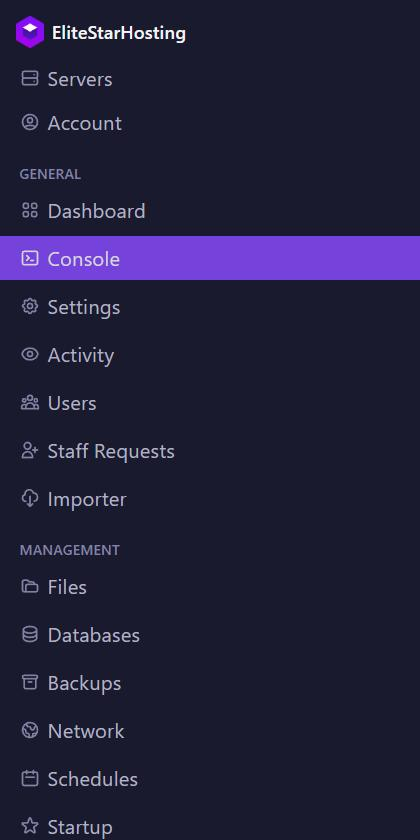
- Console: start and stop your server and send commands.
- Settings: your SFTP details, the name of your server and reinstalling.
- Users: give other people access to your server.
- Importer: copy files over from another host.
- Files, Databases, Backups, Network, Schedules and Startup: the day-to-day management of your server.
Minecraft servers have extra sections, such as Plugins, Mods, Modpacks, Worlds, Versions and Subdomains.
Securing your account
Under Account you change your panel password and turn on two-factor authentication (2FA). We recommend it: then nobody can get into your server with just your password.