Minecraft servers have three tabs for installing extra content: Mods, Modpacks and Worlds. They all work the same way: search, click Select version, pick a version and install.
Mods
Mods only work on a server type for mods: Fabric, Forge or NeoForge. Is your server on Paper or Vanilla? Switch the server type first under Versions.
- Go to Mods and search for the mod under Browse mods.
- Click Select version and pick a version that matches your server type and Minecraft version.
- Install the mod and restart your server.
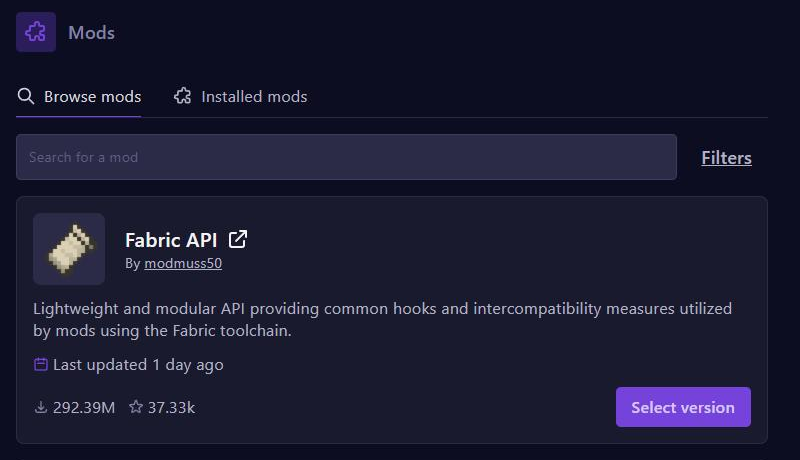
Many mods need other mods, such as Fabric API for Fabric mods. Install those too. Mods that only work on the player's side, such as minimaps or shaders, don't belong on the server. Players usually need the same mods in the same version on their own computer.
Modpacks
A modpack is a complete set of mods with settings. Modpacks installs one in one go.
- Make a backup first. A modpack changes a lot of files on your server.
- Go to Modpacks and search for the modpack, for example Cobblemon.
- Click Select version, pick the version and install.
- Start your server. The first start takes a bit longer.
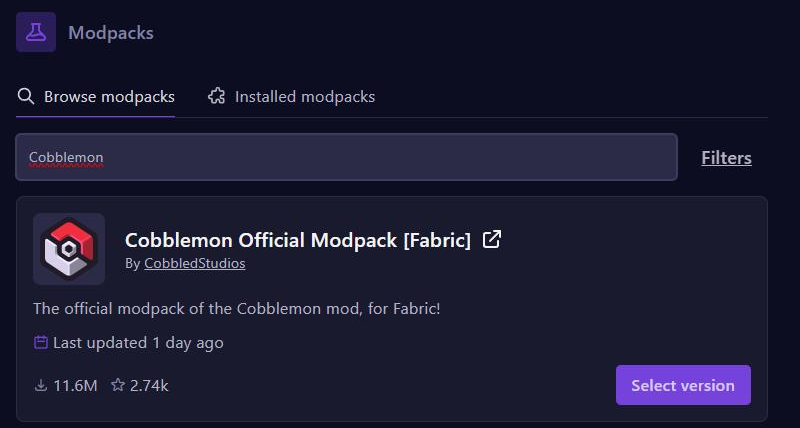
Players install the same modpack with a launcher, such as the CurseForge app, the Modrinth App or Prism Launcher. Big modpacks need a lot of memory: also read How much RAM does your game server need?
Worlds
Worlds installs ready-made worlds and maps, such as OneBlock. Installed worlds shows which worlds are on your server.
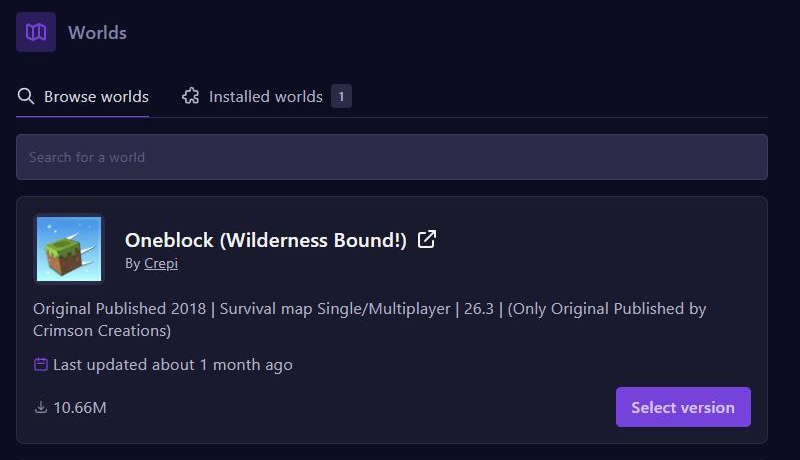
Want to keep your current world? Make a backup first.
You can upload your own world too: stop your server, upload the world folder with the File Manager or SFTP, and put the folder's name after level-name in server.properties.