Do you play Palworld in co-op, with you as the host? Then you can move that world, with all your bases and Pals, to your server, so everyone can play when you're offline. Only the host's character doesn't come along by itself.
Get ready
- Start your server once in the game panel and stop it again. This makes it create its folders and settings.
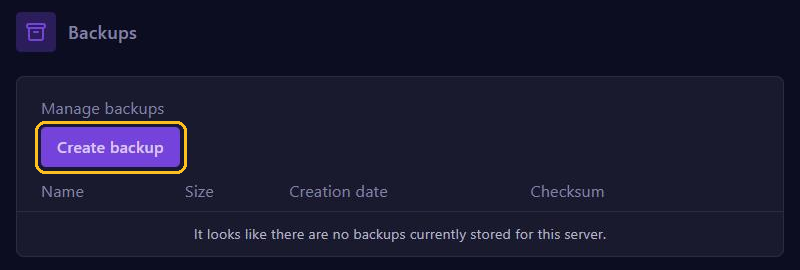
- Go to Backups and click Create backup.
- Close Palworld on your PC, so your world is saved.
You find your world on your PC with the Windows key + R: type %localappdata%\Pal\Saved\SaveGames and press Enter. Open the folder with your Steam ID, a long number. In it, every world is a folder with a 32-character name, holding Level.sav and the Players folder, among others. If you have several worlds, the one with the newest date is usually the right one.
Do you play through Xbox or Game Pass on PC? Then first convert your world to a Steam save, for example with the community tool at the bottom.
Upload the world
- Zip your world's folder on your PC.
- Go to Files, open
Pal/Saved/SaveGames/0, upload the zip file with Upload and choose Unarchive next to the file. - Open the unpacked folder and delete
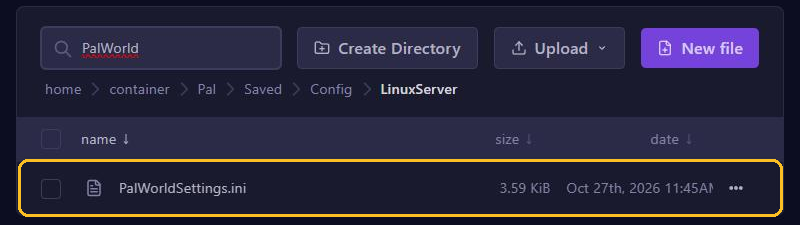
WorldOption.sav, if it's there. It holds the settings of your co-op world, and as long as the file is there, the server ignoresPalWorldSettings.ini. - In the
Pal/Saved/Config/LinuxServerfolder, open theGameUserSettings.inifile and put the exact name of your world folder afterDedicatedServerName=. Click Save Content. - Start your server and join.
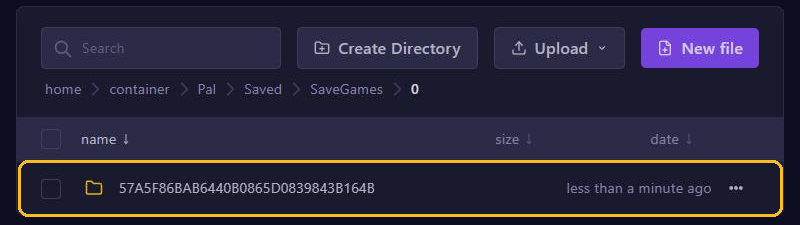
If the name doesn't match exactly, the server starts a new, empty world without any error. A big world uploads faster over SFTP. You read how to change settings in Set up your Palworld server.
The problem with the host
In co-op, the host's character is always stored in Players/00000000000000000000000000000001.sav. On a server, the host gets their own ID, just like everyone else. So the server doesn't recognise the old character, and the host has to create a new one. Other players simply keep their characters. There is no official way to move that character (November 2026).
Official: take your Pals along with the Global Palbox
Build a Global Palbox in your co-op world and store a copy of your Pals in it. On the server, you bring them back with your new character from a Global Palbox. Level, items and technology don't come along. For this, set bAllowGlobalPalboxImport to True in PalWorldSettings.ini, because by default it's False. That file also holds your passwords: don't share it with anyone.
Community fix: swap the IDs
Want your level and items back too? You can do that with Palworld Save Pal, a free community tool that is now also called PalStudio. It isn't made by Pocketpair or by us: use it at your own risk and only with a backup. Older tools such as palworld-host-save-fix don't work with current saves.
- Have the host join once and create a new character. Then stop your server.
- In Files, choose Archive next to your world folder and download the archive with Download.
- Unpack it, open the world in the tool and use Player UID Swap to swap the host's old character (the ID ending in 1) with the new one.
- Delete the world folder on the server, upload the changed folder as described above and start your server.