A save from single-player or co-op works on your Satisfactory server without converting it. The server does have to run at least the same version as your game: a save from a newer version, such as the experimental one, won't load on an older server. You can only upload and load saves as an admin. You read how to claim your server and switch versions in Set up your Satisfactory server.
A backup first
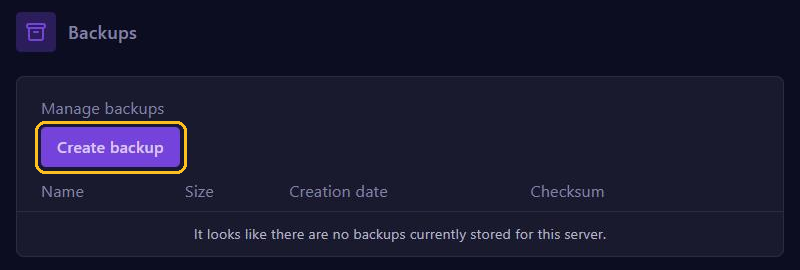
In the game panel, go to Backups and click Create backup. Already playing on the server? Then also type server.SaveGame before-upload in the Console tab of the Server Manager. This gives you a save with that name. The command doesn't work in the game panel's console.
Upload with the Server Manager
This is the easiest way.
- Start your server, open Satisfactory and choose Server Manager in the main menu.
- Pick your server, sign in as an admin and open the Manage Saves tab.
- Choose Upload Save. Click your session on the left and the save you want on the right, usually the newest one.
- Click Upload Game and wait until the upload is done.
- Go to Load Save, pick your session and save and click Load Game.
The server now loads your world and is briefly unreachable while it does. Afterwards, check under Server Settings that Auto-Load Session Name shows the name of your session. Then the server loads the newest save of that session after every restart.
Upload with Files
Doesn't it work in the game, or is your save very big? Then put it on the server yourself.
- On your PC, press the Windows key + R, type
%localappdata%\FactoryGame\Saved\SaveGamesand open the folder with your ID. See one folder for Steam and one for Epic? The Steam one usually has the shorter name. - Stop your server and go to Files in the panel.
- Open
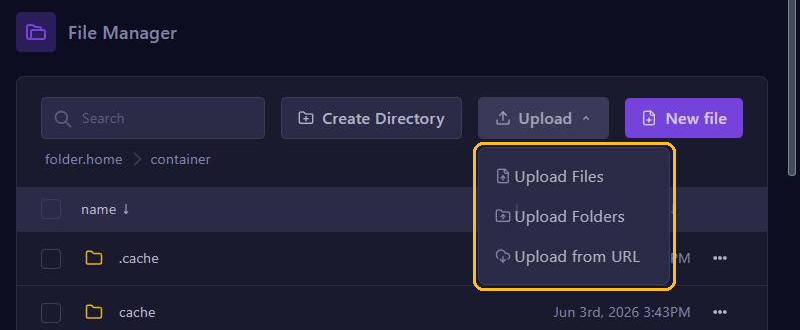
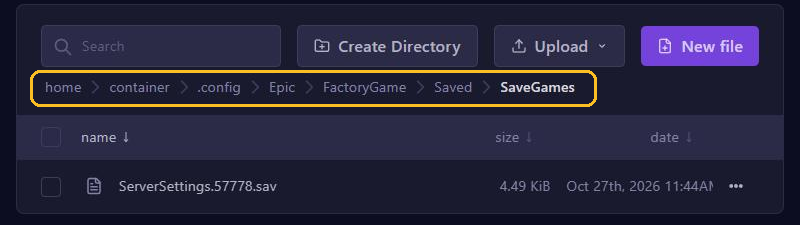
.config/Epic/FactoryGame/Saved/SaveGames/serverand upload your.savfile with Upload and Upload Files. - Start your server and load the save in the Server Manager through Manage Saves and Load Save.
Does the server folder not exist yet? Then start and claim your server once first. Big files are easiest to move over SFTP. Don't upload your save to the FactoryGame/Saved folder next to the server files: the server doesn't look there.
Keep your saves safe
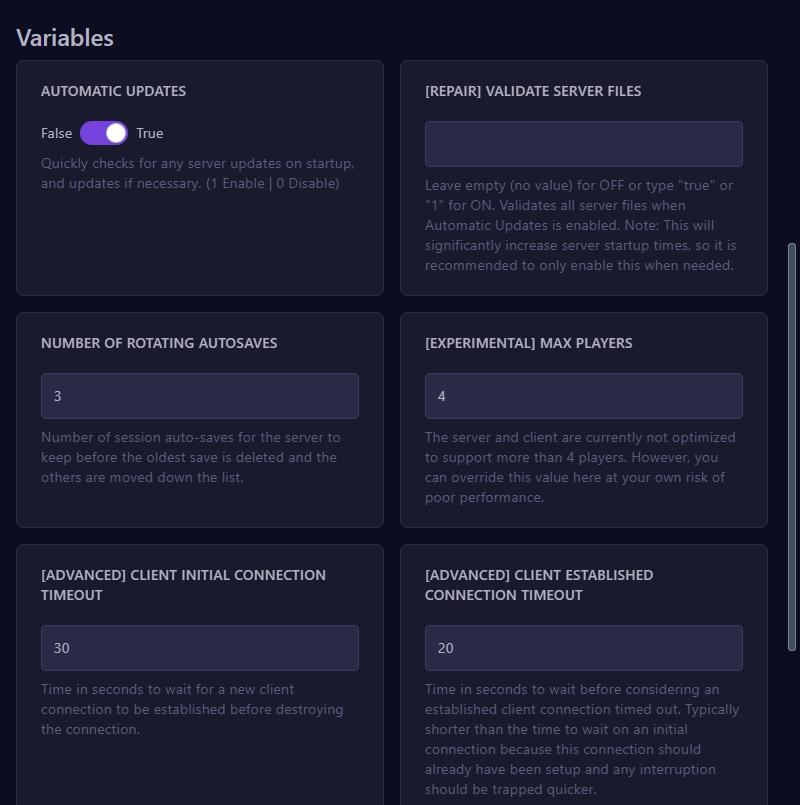
- The server makes autosaves by itself. You set how many it keeps at NUMBER OF ROTATING AUTOSAVES under Startup. By default that's 3.
- Make regular backups in the panel, for example every night with Schedules. There is more in Create and restore backups.
- Since version 1.0, as an admin you can also download a save in the Server Manager. That way you always have a copy on your own PC.
- Save your game before you stop the server or make a backup, with
server.SaveGameand a name in the Server Manager.