Do you play Valheim on your own PC now, or do you host the world from the game? Then you can put that world on your server, so your friends can also play when you're offline. You don't need to upload your character: it's stored on your own PC and simply comes along with you.
Find your world on your PC
- Close Valheim, so your world is fully saved.
- Press the Windows key + R, type
%userprofile%\AppData\LocalLow\IronGate\Valheim\worlds_localand press Enter. - Look for your world by its name.
Since Valheim 1.0 (September 2026), every world is a folder with your world's name, holding lots of small files. If you haven't opened the world since 1.0, it still consists of two files: a .db and a .fwl file with your world's name. If you see both a folder and those two files for the same world, only upload the folder.
Is your world not in the list? Then it's probably in Steam Cloud. You'll find it in Steam's folder, under userdata\<your number>\892970.
Upload it to your server
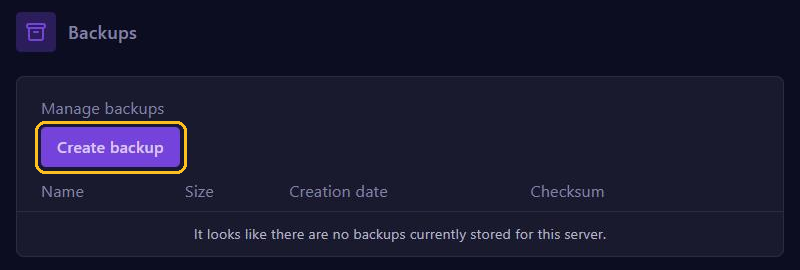
- In the game panel, go to Backups and click Create backup, so you can always go back.
- Stop your server.
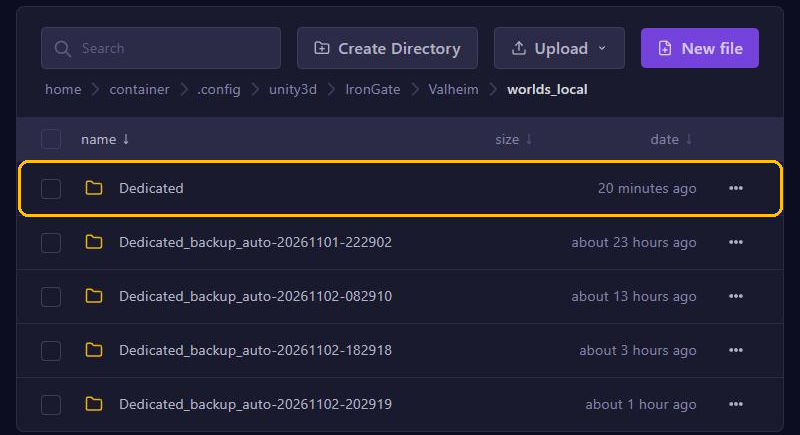
- Go to Files and open
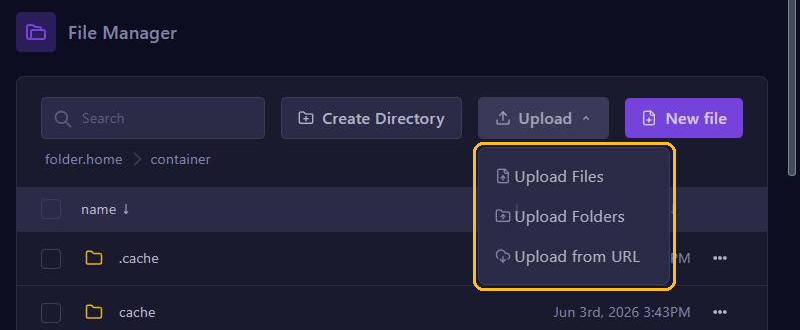
.config/unity3d/IronGate/Valheim/worlds_local. - Click Upload and choose Upload Folders for your world's folder, or Upload Files for the
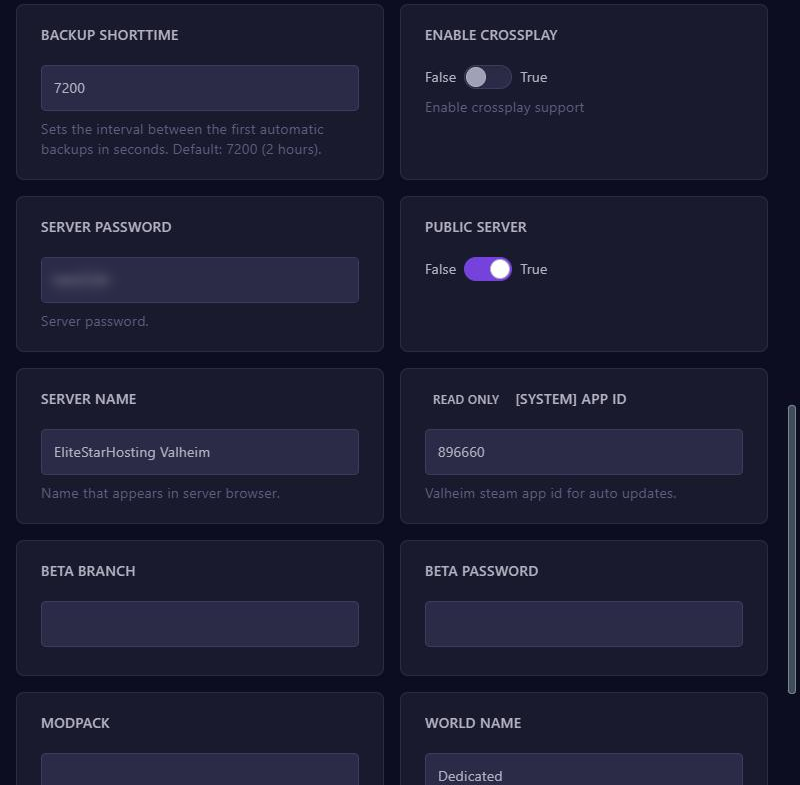
.dband the.fwlfile. - Go to Startup and enter the exact name of your world at WORLD NAME, with the same capital letters.
- Start your server.
Does the worlds_local folder not exist yet? Then start your server once and stop it again. Rather upload a single file? Then zip the folder, upload the zip and choose Unarchive next to the file. A big world moves faster and more reliably over SFTP.
Check that it worked
Join your server and check that your buildings are there. Do you see an empty, new world? Then the name at WORLD NAME doesn't match exactly, or your world is in a different folder. In that case the server creates a new world with that name itself. Stop your server, fix the name or the folder and start it again.
The server converts a world with a .db and a .fwl file to the new 1.0 storage on its first start. Valheim makes a backup of its own first, but keep your own copy as well.
Mods and backups
- Did you play with mods? Then put the same mods on your server too, or buildings and items from those mods can disappear. You read how in Valheim server with mods.
- By default, Valheim saves your world every 30 minutes and keeps a few backups of its own, in separate folders. You set this with the BACKUP fields under Startup.
- Those backups are on the same server as your world. So also make backups in the panel, for example every night with Schedules. There is more in Create and restore backups.