You set up most of a Satisfactory server from the game itself, with the Server Manager. In the game panel you handle updates, autosaves and the maximum number of players.
Claiming the server
The first player who signs in claims the server and becomes its admin. Use the Server Manager for this: joining directly doesn't work the first time.
- Start your server in the game panel and wait until it says Online.
- Open Satisfactory and choose Server Manager in the main menu.
- Click Add Server and enter the address and port shown at the top of your server page, for example
gnode2.elitestarhosting.comand57778. - Confirm that you trust the server. The server uses its own certificate, which is why the game asks the first time.
- Give your server a name and choose an admin password. Keep it safe and don't share it with anyone.
A new game or your own save
As an admin, you start a new game in the Server Manager with Create Game. Already have a world, single-player too? Then upload it with Manage Saves and load it there.
Tier 0, the start with the tutorial, can't be played on a dedicated server: that part is skipped. Want to play it anyway? Then play locally first and upload your save afterwards.
Under Server Settings in the Server Manager you choose, among other things, a password for players (off by default), whether the server pauses when nobody is online and whether it saves when a player leaves. You type server commands in the Console tab of the Server Manager. They don't work in the game panel's console.
Settings in the game panel
Go to Startup. Under Variables you find:
- AUTOMATIC UPDATES: updates the server on every start.
- NUMBER OF ROTATING AUTOSAVES: how many autosaves the server keeps, 3 by default.
- [EXPERIMENTAL] MAX PLAYERS: 4 by default. More is possible, but the game isn't built for it and may stutter.
- [ADVANCED] BRANCH NAME:
publicorexperimental.
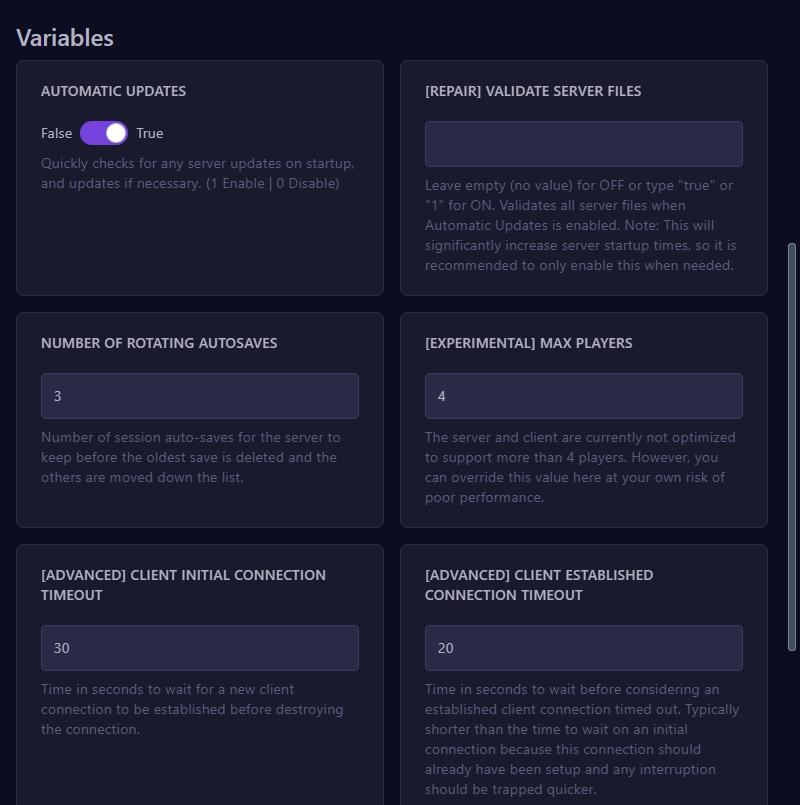
On every start, the panel writes the player count and autosaves into the configuration files, so you change them here.
Switching to the experimental version? First make a backup, set BRANCH NAME to experimental, turn on AUTOMATIC UPDATES, type true under [REPAIR] VALIDATE SERVER FILES and restart your server. Experimental versions can be unstable, and players need the same version.
Two ports
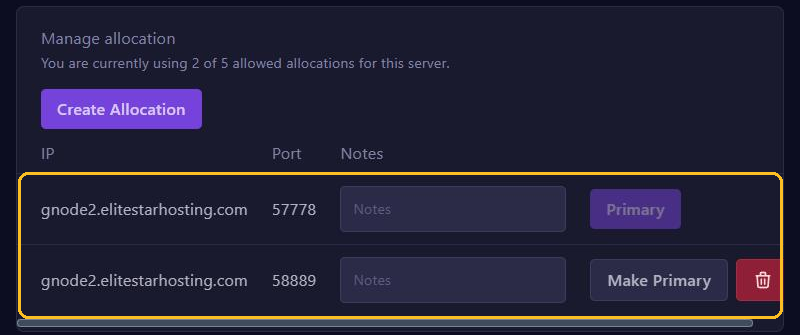
Since version 1.1, Satisfactory needs two ports: the normal port for the game and the Server Manager, and a port for reliable messaging. You see both under Network. The second one is also under Startup as RELIABLE PORT. Don't remove that extra port, or nobody can join anymore. You read more about ports in Ports and allocations.
Saving and a forgotten password
Save your game in the game before you stop the server. Stopping alone doesn't always save.
Forgot the admin password? Stop your server, go to .config/Epic/FactoryGame/Saved/SaveGames in Files and delete the file ServerSettings. followed by your port, for example ServerSettings.57778.sav. Start the server and claim it again. Your saves in the server folder stay, but make a backup first to be safe.