This is how you put a bot in Python with discord.py online day and night. discord.py works with Python 3.8 and newer. Your server has to run on Python for this: under Startup you then see the APP PY FILE field. Do you see MAIN FILE there instead? Then your server runs on Node.js: ask us through support to switch it. Writing in JavaScript? Then read the guide for Node.js.
1. Create your bot in Discord
- Go to the Discord Developer Portal, click New Application, pick a name and click Create.
- Open Bot, click Reset Token and copy the token. Discord shows it only once.
- Under Privileged Gateway Intents, turn on the intents your bot uses, see below.
- Open OAuth2, go to the OAuth2 URL Generator and tick
botandapplications.commands. Choose under Bot Permissions what your bot may do, preferably not Administrator. - Open the link at the bottom, pick your Discord server and click Authorize.
The token is your bot's password: never share it, not even with us.
2. Turn on intents
A privileged intent has to be on in the Developer Portal and in your code. If it is off in the portal, your bot won't start.
intents.message_content = Truebelongs to the Message Content Intent. You need it to read messages, such as commands with!.intents.members = Truebelongs to the Server Members Intent, for joins, leaves and the member list.intents.presences = Truebelongs to the Presence Intent, for online statuses.
3. Prepare your files
In requirements.txt you list the packages your bot needs, one per line:
discord.py
python-dotenv
A simple bot.py:
import os
import discord
from dotenv import load_dotenv

load_dotenv()
intents = discord.Intents.default()
intents.message_content = True
client = discord.Client(intents=intents)

@client.event
async def on_ready():
    print(f"Logged in as {client.user}")

client.run(os.getenv("DISCORD_TOKEN"))
.env holds a single line: DISCORD_TOKEN= followed by your token. Never share that file: this is how you keep your token safe. Never name your file discord.py, or Python loads your own file instead of the library.
4. Upload and set up Startup
- Upload your
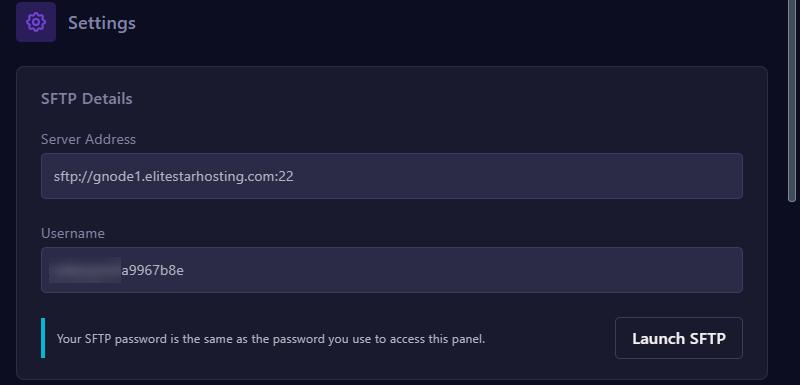
.pyfiles,requirements.txtand.envthrough Files or SFTP. Leave out folders such asvenvand__pycache__. - Under Startup, fill in your main file at APP PY FILE, such as
bot.py. - Leave REQUIREMENTS FILE at
requirements.txt: the server uses it to install your packages on every start. Single packages can also go in ADDITIONAL PYTHON PACKAGES, separated by spaces. - Can you choose a Python version at Docker Image? Then take the newest.
5. Start and fix errors
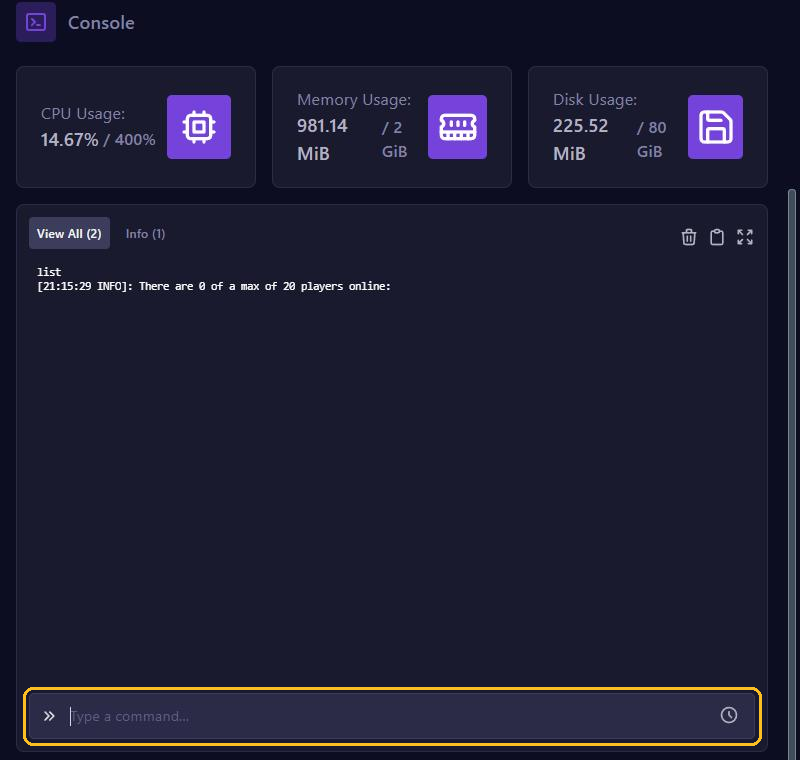
Click Start and open Console. Do you see Logged in as with your bot's name? Then it is online.
PrivilegedIntentsRequired: turn on the intent your code asks for in the Developer Portal.Improper token has been passed.: the token is wrong. Make a new one with Reset Token.received NoneType instead: your bot can't find.envor the nameDISCORD_TOKEN.No module named 'discord': your packages are not installed. Isrequirements.txtin the main folder, and isn't it accidentally calledrequirements.txt.txt?No module named 'audioop': your discord.py is too old for Python 3.13 or newer. Putdiscord.py>=2.5inrequirements.txt.
Updating
Upload your changed files and click Restart. Add new packages to requirements.txt first, then the server installs them on the restart. If your bot crashes, the panel starts it again, except after a second crash within a minute. Then read the error in the console. Restart every night? Use Schedules.