Do you host Enshrouded in co-op? Then move that world to your Enshrouded server, so your friends can also play when you're offline. Only the world moves. According to Keen Games, Enshrouded always keeps characters on each player's own PC, also with a server, so they come along by themselves.
Backups first
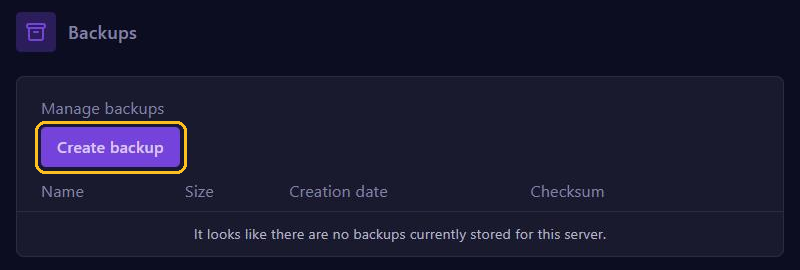
- In the game panel, go to Backups and click Create backup.
- Close Enshrouded on your PC.
- Copy your whole save folder (see below) to another place. Keen itself recommends copying all save files before you change anything.
Your world on your PC
Since version 1.0 (October 2026), local saves are in this folder. Press the Windows key + R, paste the path and press Enter:
%USERPROFILE%\Saved Games\keen games\Enshrouded\defaultDo you play with Steam Cloud? Since 1.0, the game shows local worlds and Steam Cloud worlds in separate tabs. The Steam Cloud files are in C:\Program Files (x86)\Steam\userdata\<Steam ID>\1203620\remote. Your Steam ID is listed as Friend Code in the Steam settings, under Account.
Haven't loaded your world since 1.0? Start Enshrouded and load it once. The game then first backs up your old save and converts it to the new 1.0 format.
The right file names
The server only loads a world with the file names it uses itself. Keen doesn't describe those names for 1.0 yet: Keen's save guide covers the old format (November 2026). So check on the server itself:
- Start your server and let it run for at least 5 minutes. According to Keen, a server saves the world every 5 minutes.
- Stop your server, go to Files and open the
savegamefolder. Write down what the files are called. - On your PC, find the files of your co-op world that look like those names. If you have several worlds, the one with the newest date modified is usually the world you played last.
- Copy those files to an empty folder and give them exactly the names of the server's files.
Still no savegame folder after those 5 minutes? Then create it in the main folder with Create Directory, with exactly that name. That's the folder set at "saveDirectory" in enshrouded_server.json. In that case, upload your files with their own names; after the start you'll see whether they are right.
Uploading
- Stop your server.
- Open
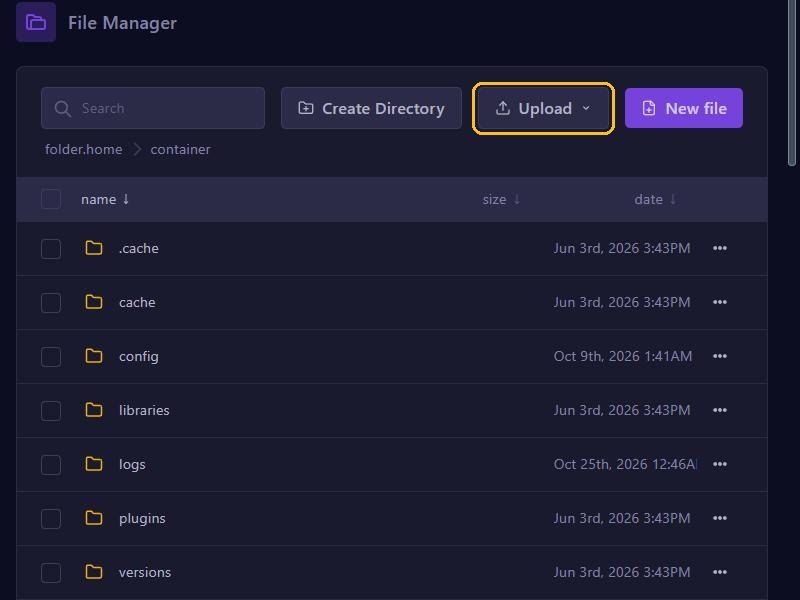
savegameand delete the files and folders that are in it now. They are in your backup. - Click Upload, choose Upload Files and select your renamed files.
- Start your server and join.
Do you see a new, empty world? Then the server doesn't recognise your files and has made files of its own. Stop your server, look at what those new files are called, give your own files those names and upload them again. A big world moves faster over SFTP.
Roles and passwords
The server doesn't use the roles you set up in co-op. On a server, the password someone joins with decides their role. Those roles are under userGroups in enshrouded_server.json, each with its own password and permissions such as canKickBan, canAccessInventories and canEditWorld. A new file gets random passwords.
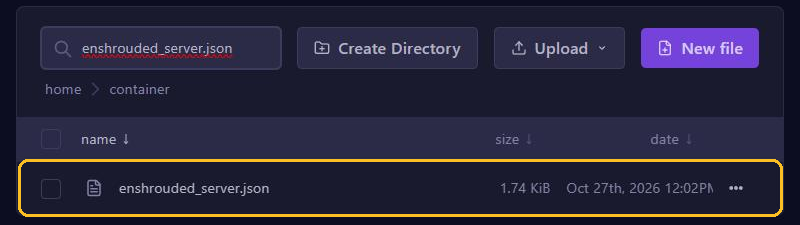
Choose your own passwords as described in Set up your Enshrouded server and give everyone only the password of the role that suits them. That file holds all your passwords: don't share it and don't take screenshots of it.