This is how you start your Hytale server for the first time, set the name and password and make yourself operator.
The first start
Open your server in the game panel and go to Startup. You find three variables there:
- RUN DOWNLOADER: with
1, the server downloads the newest version of its patchline on every start. Leave it on, so a restart also updates your server. - AUTOMATIC AUTHENTICATION: how your server signs in with Hytale, see below.
- PATCHLINE / BRANCH:
releaseorpre-release, explained at the end.
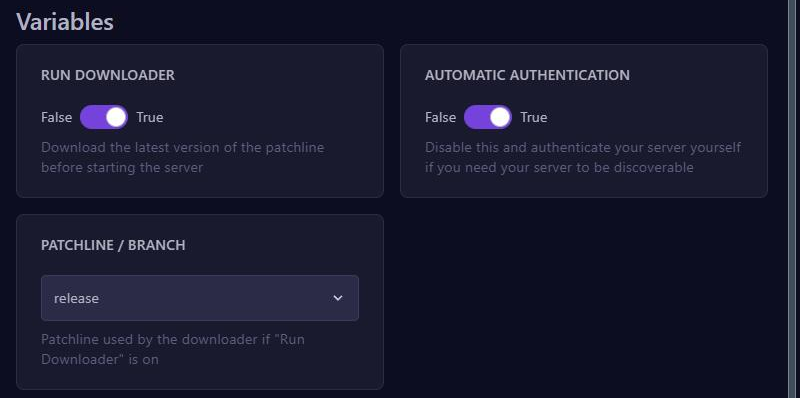
Then click Start. The first start can take a while.
Automatic or your own authentication
A Hytale server has to sign in with Hytale before players can join. With AUTOMATIC AUTHENTICATION set to 1 (the default), the server does this by itself on every start.
Want to be in Server Discovery, the server list inside Hytale (since Update 5, May 2026)? A listing belongs to one Hytale profile, and the server has to be signed in with that profile. Then sign it in yourself:
- Set AUTOMATIC AUTHENTICATION to
0and restart your server. - Type
/auth login devicein the console. - Open the link that appears (
https://accounts.hytale.com/device), sign in with your Hytale account and enter the code from the console. It's valid for 15 minutes. - Wait for
Authentication successful. Several profiles? Choose one with/auth selectand the number from the console. - Type
/auth persistence Encrypted, so the server stays signed in after a restart.
Don't share the code or screenshots of it with anyone. If the server was off for more than 30 days, sign it in again. You create your listing on your Hytale account page under Server Profiles. Then link the server with /discovery link and the token of your listing, which is secret too.
Name, MOTD and password
These settings are in config.json. Hytale reads it at startup and can overwrite changes made while it runs. So:
- Stop your server.
- Go to Config (under CONFIGURATION in the menu) and click
config.json. - Find a setting with Search keys..., change the value and click Save.
- Start your server.
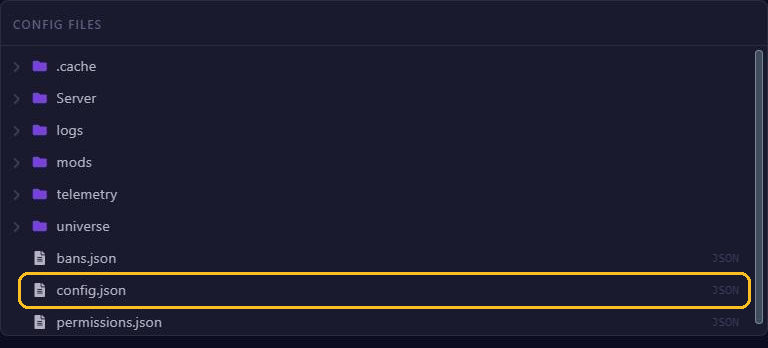
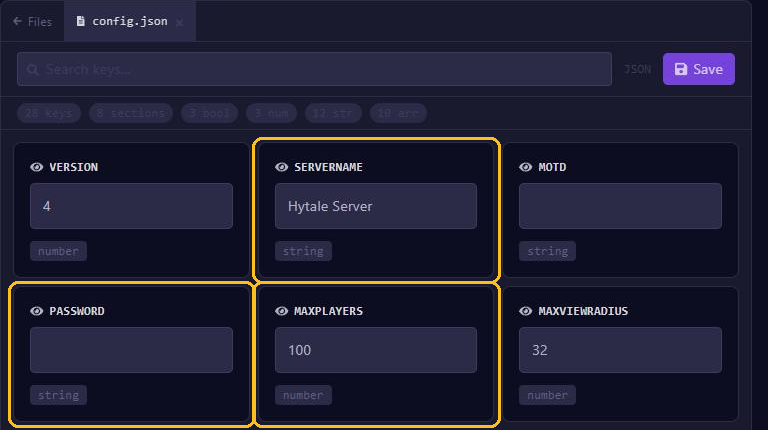
The form also shows your password: don't share screenshots of it.
- SERVERNAME: the name of your server.
- MOTD: the message of the day.
- PASSWORD: the password players need to join.
- MAXPLAYERS: how many players can be on at the same time, 100 by default.
- MAXVIEWRADIUS: how far players can see, in chunks. 32 by default and at most. View distance uses the most memory; Hytale recommends 12.
- REQUIREJOINPERMISSION: leave this off. When on, only admins and players with the
hytale.server.joinpermission get in.
Joining
Open Hytale, choose Servers in the main menu and add your server with the address at the top of your server page, for example gnode1.elitestarhosting.com:5520. Hytale doesn't support SRV records yet (November 2026), so always include the port.
Making yourself operator
Join your server once, then type this in the console:
/op add YourNameThis puts you in the Admin group, with all permissions. Hytale stores this in permissions.json; /op remove YourName undoes it.
PATCHLINE / BRANCH
release: the regular version.pre-release: the test version of the next update, which changes about every week.
Players need exactly the same version as the server, or Hytale refuses the connection (November 2026). If you choose pre-release, players turn on pre-release in the Hytale Launcher, under Settings. To switch: make a backup, choose the patchline and restart your server. RUN DOWNLOADER must be 1.
After a Hytale update, restart your server so it downloads the new version. Until then, players on the new version can't get in. Mods? Read Mods on your Hytale server.