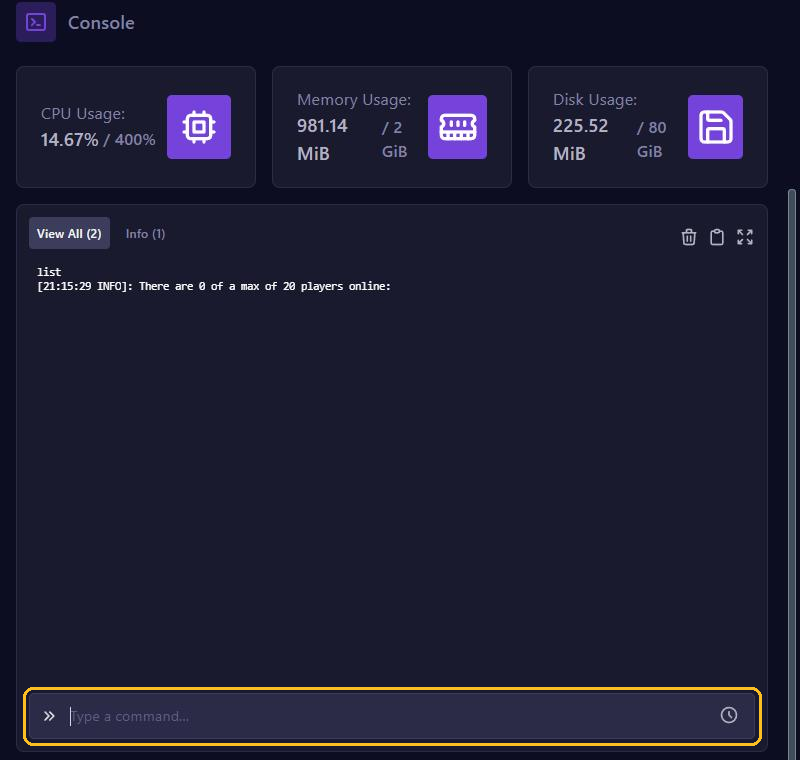
In Rust you're only an admin once the server knows your SteamID64. You set that up with a few commands in the Console of the game panel. There you type commands without a /.
Finding your SteamID64
A SteamID64 is a 17-digit number that starts with 7656.
- Start Rust and connect to your server.
- Type
usersin the panel's console. - You see a line per player like
76561198123456789:"Name". The number before the colon is the SteamID64.
Becoming owner or moderator
ownerid 76561198123456789 "Name"
moderatorid 76561198123456789 "Name"owneridgives the highest level, auth level 2. A moderator can't add owners.moderatoridgives auth level 1, handy for helpers.
Then reconnect: only then does it work. Rust stores this itself in server/rust/cfg/users.cfg. To be sure, also type server.writecfg: it writes the cfg files straight away. You remove someone with removeowner or removemoderator and the SteamID64.
You can also add a line to users.cfg in the File Manager, such as ownerid 76561198123456789 "Name" "". Only do that while the server is stopped, otherwise Rust may overwrite your line.
With Oxide or Carbon, an owner automatically lands in the admin group for plugins, see Rust: Oxide and your first plugins.
Handy commands
say Hello everyone: a chat message to everyone.status: who is online, with SteamID64 and IP address. Don't share that list.kick 76561198123456789 "reason": remove someone from the server.banid 76561198123456789 "Name" "reason": ban someone, even while they're offline.unbanwith the SteamID64 lifts it. Rust keeps bans inbans.cfg, next tousers.cfg.server.save: save the world now.
RCON: managing outside the panel
RCON is Rust's remote admin console. Your server runs with web RCON on, and the panel's console also talks to your server this way. If you type a command while the server is still starting, the console says RCON isn't connected yet. Then wait a moment.
For an RCON tool of your own you need three things:
- your server's address without the port, for example
gnode1.elitestarhosting.com; - the RCON PORT under Startup, which is fixed;
- your RCON PASSWORD, also under Startup.
Tools you can use (November 2026): Facepunch's web console, which only works over http, and the free program Rustadmin. Can't connect? Check that the RCON PORT is listed on the Network page, and otherwise ask support.
Keep your RCON password secret
Anyone with your RCON password can do everything on your server: run commands, make themselves owner and ban players.
- Choose a long password with letters, digits, dots, hyphens or underscores, up to 64 characters. A new password works after a restart.
- On every start the console shows the full startup line, including the RCON password. So don't share screenshots or copies of the start of the console.
- Anyone allowed to see the console or Startup can find the password too. So only give co-admins access if you trust them.
- Web RCON isn't encrypted. If you suspect someone else knows the password, or an admin leaves, change it straight away.