While a player joins your FiveM server, a loading screen appears. You can make your own version of it, with your logo, your rules or music. A loading screen is simply a resource: a folder with an HTML page and an fxmanifest.lua.
Rather use a ready-made loading screen? You find them in the Releases on the Cfx.re forum. Those come as a complete folder: skip straight to step 2.
1. Make the folder
On your computer, make a folder without spaces in its name, for example my-loadscreen, with these files:
my-loadscreen/
  fxmanifest.lua
  index.html
  style.css
  logo.png
Put this in fxmanifest.lua:
fx_version 'cerulean'
game 'gta5'

loadscreen 'index.html'

files {
    'index.html',
    'style.css',
    'logo.png',
}
loadscreen points to the page players see. Every file that page uses, such as images, fonts and music, must be listed under files. Otherwise it won't load for players.
A simple index.html:
<!DOCTYPE html>
<html>
<head>
  <meta charset="utf-8">
  <link rel="stylesheet" href="style.css">
</head>
<body>
  <img src="logo.png" alt="Logo">
  <h1>Welcome to our server</h1>
</body>
</html>
2. Upload and turn it on
- In the game panel, open Files and go to the resources folder.
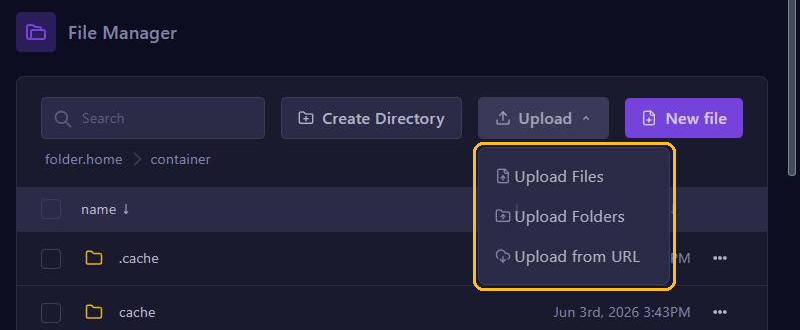
- Click Upload, choose Upload Folders and select your folder.
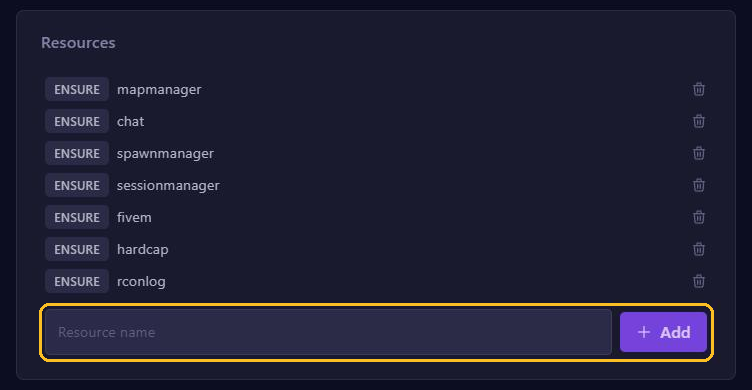
- Go to server.cfg editor, type the folder name under Resources, such as
my-loadscreen, and click Add. - Click Save and restart your server.
Then join your server yourself to see the result.
Only one loading screen at a time
FiveM shows only one loading screen. If two are active, you can't tell which one players will see. Did you install ESX, Qbox or QBCore with a recipe in txAdmin? Then you already have one:
- ESX:
esx_loadingscreeninresources/[core] - Qbox:
loadscreeninresources/[standalone] - QBCore:
qb-loadinginresources/[qb]
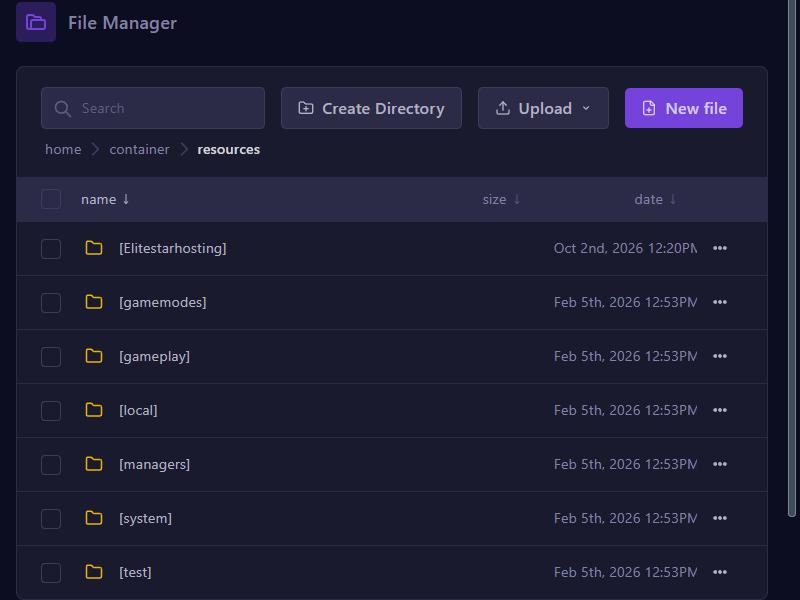
These start through one line for the whole folder, such as ensure [core]. So move the old loading screen to the resources folder itself with Move, and it no longer starts. Then restart your server.
Keep it small and fast
- Every player downloads all files under
fileswhen they join. So use compressed images (JPG or WebP), short music and preferably no big video. - Want a mouse pointer, for example for a button that turns the music off? Add
loadscreen_cursor 'yes'to yourfxmanifest.lua. - With the
loadProgressmessage, your page can show a progress bar. See the FiveM documentation on loading screens. - Hide the spinning circle in the bottom right with
setr sv_showBusySpinnerOnLoadingScreen false, through Manual Edit in the server.cfg editor. Only do that if your page shows the progress itself. Careful: your server.cfg contains your license key, so never share a screenshot of it.
Players stuck on the loading screen?
Does your fxmanifest.lua contain the line loadscreen_manual_shutdown 'yes'? Then the loading screen stays until a script closes it with ShutdownLoadingScreenNui(). If you have no script that does this, remove the line and restart your server.
Seeing errors in the console, such as Couldn't find resource? Then check that the folder name exactly matches the name under Resources.