With two-factor authentication (2FA), the game panel asks for your password and a code from an app on your phone when you log in. If someone knows your password, they still can't get to your servers. You need an authenticator app, such as Google Authenticator, Microsoft Authenticator or 2FAS.
First: a password for the panel
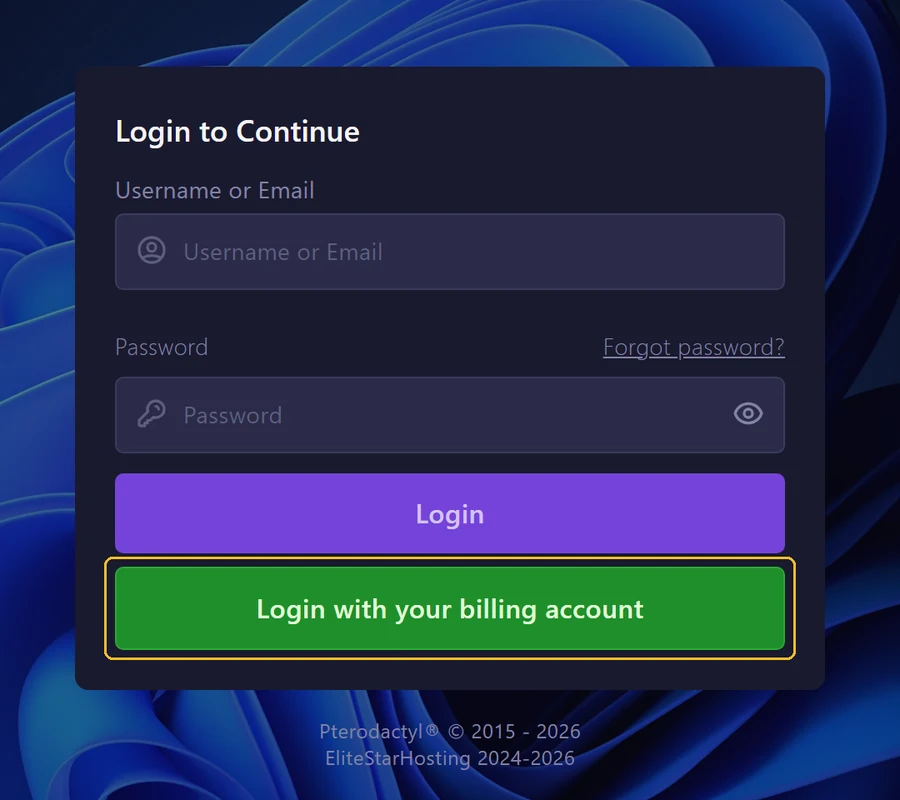
When you turn it on, the panel asks for your panel password. Do you always log in with Login with your billing account and have you never set a panel password? Then set one first:
- Log out and click Forgot password? on the login page.
- In Email, fill in the email address of your client account and click Send Email.
- Open the link in the email and choose a new password.
Choose a password you don't use anywhere else. You also use it for SFTP.
Turn on 2FA
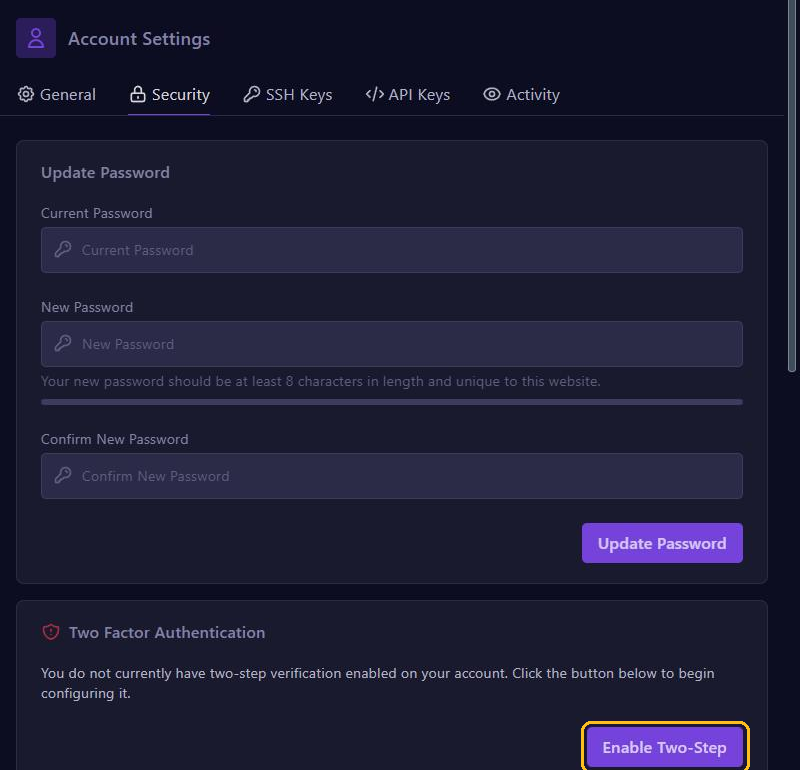
- Click Account at the top of the menu and open the Security tab.
- Under Two Factor Authentication, click Enable Two-Step.
- Scan the QR code with your app. Can't scan it? Then type the code below the QR code into your app.
- Fill in the six-digit code from your app, and below it your panel password in Account Password.
- Click Enable.
Keep your recovery codes
Next, the panel shows Two-Step Authentication Enabled with ten recovery codes. You only see them once. Click the codes to copy them and keep them somewhere safe, such as a password manager, but not on the same phone as your app. Each code works once. Don't share them with anyone, not even with us. Then click Done.
Log in with 2FA
With 2FA on, log in with Username or Email and your panel password. You then see the Device Checkpoint screen: fill in the code from your app and click Continue. The code changes every 30 seconds. Is it rejected? Then check that the time on your phone is set automatically.
Lost your phone?
- On Device Checkpoint, click I'VE LOST MY DEVICE.
- Fill in one of your recovery codes and click Continue.
- Go to Account, Security tab, click Disable Two-Step and confirm with your panel password.
- Turn 2FA on again with your new phone. You also get new recovery codes.
No phone and no recovery codes left? Contact support. We first check that the account is yours and then turn 2FA off for you.
Turn off 2FA
Click Disable Two-Step, fill in your panel password in Password and click Disable. Only do this when you really need to.
Good to know
- SFTP doesn't ask for a code, only your panel password. A strong password still matters.
- A key under API Keys also works without a code. Only create one when you need it and delete keys you no longer use.
- Under Session History on the Security tab you see when and from which IP address someone logged in. Don't recognise a login? Change your password right away in Update Password.
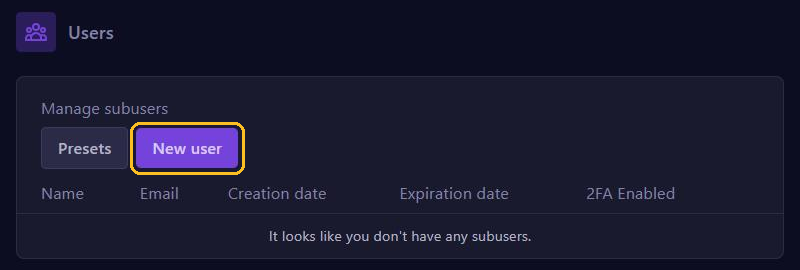
- Subusers have their own account and turn on 2FA themselves. On the Users page, the 2FA Enabled column shows who uses it.