The Settings page is for things you don't need every day: your server's name, your SFTP details, details for support and a fresh installation. Open your server in the game panel and click Settings in the menu.
SFTP Details
At the top are your SFTP Details: the Server Address with the port, and your Username. Click a field to copy it. Your SFTP password is your game panel password. Do you always log in with Login with your billing account and have no panel password yet? Then set one first with Forgot password? on the login page.
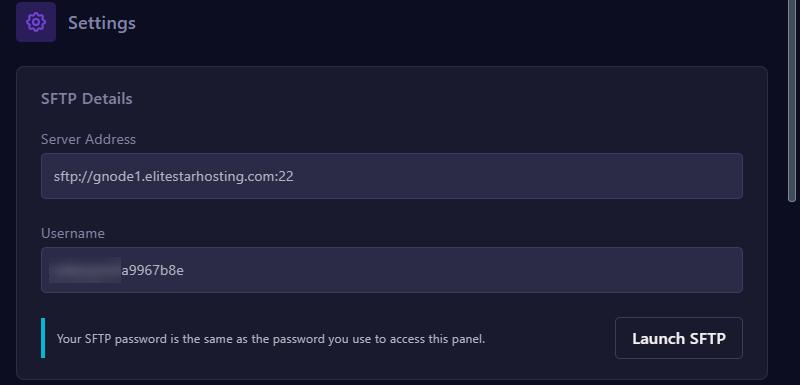
To connect with FileZilla or WinSCP, read Connect to your game server with SFTP.
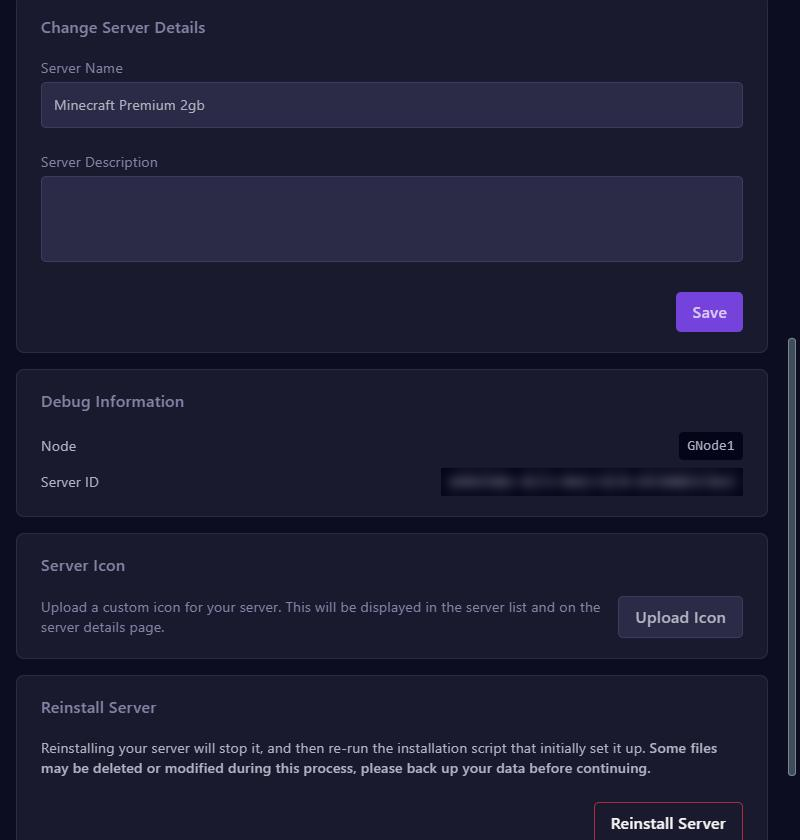
Change the name and description
- Find the Change Server Details block.
- Fill in a new name in Server Name. In Server Description you can add a short note, for example what the server is for.
- Click Save.
You see the new name straight away in your server list and at the top of the server page. It is only the name in the panel: players don't see it. What players see in their server list is set in the game itself, for Minecraft with the MOTD and for FiveM in the Cfx.re Portal.
Debug Information for support
Debug Information shows the Node, the machine your server runs on, and your Server ID. Click the Server ID to copy it. Put both in your message when you ask support for help, so we find your server right away. We never need your password, so don't share it with anyone.
Server Icon
On a Minecraft server you also see Server Icon here. Click Upload Icon and choose a square image. The panel turns it into a 64 by 64 pixel PNG and saves it as server-icon.png in the main folder. An existing icon is overwritten. After a restart, players see the new icon in their server list.
Reinstall your server
Reinstall Server stops your server and runs the installation script that originally set it up again. This helps when the installation failed, when server files are missing or broken, or when you changed a variable under Startup that only takes effect on installation, such as MINECRAFT VERSION.
What happens to your files:
- Your server is not wiped. Worlds, plugins and settings usually stay.
- The script can overwrite or delete files, such as the server jar file or default config files. Exactly which ones depends on the game.
- Your backups under Backups and your databases stay where they are.
How to reinstall:
- Make a backup first, so you can always go back.
- Under Reinstall Server, click the Reinstall Server button.
- Confirm with Yes, reinstall server.
- Follow the installation in the Console. While it runs, most buttons don't work.
- Is the installation done? Then start your server again with Start.
Want to start completely fresh? Make a backup, delete all files in the File Manager and then click Reinstall Server. You then get a clean server.
A subuser can only rename or reinstall your server with the permissions under SETTINGS.