In the Minecraft server list, players see two things of your server: the icon and the MOTD (message of the day), the text below the name. With your own icon and a clear text, your server stands out more. You set both yourself.
Your own server icon
- Make a square image of exactly 64 by 64 pixels and save it as a PNG. A bigger or smaller image doesn't work.
- Name the file
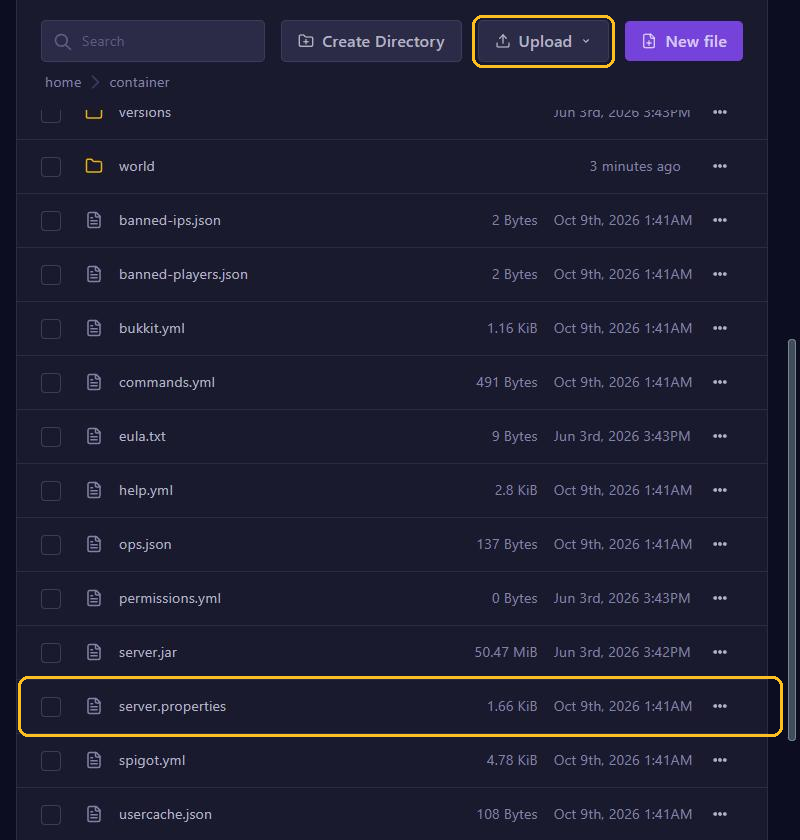
server-icon.png, in lowercase. - Open your server in the game panel and go to Files. Stay in the main folder, where
server.propertiesis too. - Click Upload, choose Upload Files and select your image.
- Restart your server. The server only reads the icon when it starts.
Then click Refresh in the Minecraft server list. Your icon now shows next to your server's name.
Still seeing the default icon? Check these:
- The name. Windows often hides the extension, so the file is called
server-icon.png.pngwithout you noticing. The File Manager shows the full name. - The size: exactly 64 by 64 pixels. If it isn't, the console says
Couldn't load server iconwhen the server starts. - The location: the file has to be in the main folder, not in a subfolder.
Changing the MOTD
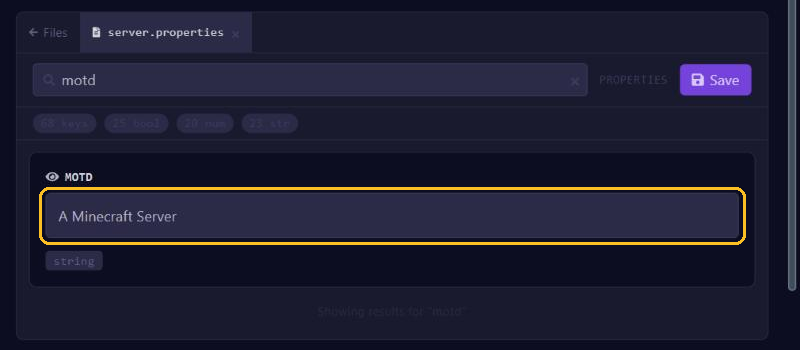
For plain text, use the Config tab:
- Go to Config and click server.properties.
- Type
motdin Search keys.... - Replace the text,
A Minecraft Serverby default, with your own text. - Click Save and restart your server.
Colors and a second line
Colors and a second line are easiest to set in the file itself. Open server.properties in the File Manager and find the line that starts with motd=.
- A color or style starts with
\u00A7, followed by one character from the list below. \nstarts the second line.
An example:
motd=\u00A76\u00A7lEliteStar Survival\n\u00A77New spawn, come and have a look!This gives a gold, bold first line and a gray second line. Save the file and restart your server.
Colors                             Styles
0  black          8  dark gray     l  bold
1  dark blue      9  blue          o  italic
2  dark green     a  green         n  underline
3  dark aqua      b  aqua          m  strikethrough
4  dark red       c  red           k  scrambled characters
5  dark purple    d  light purple  r  back to normal
6  gold           e  yellow
7  gray           f  white
Tips
- Put the color first and then the style, so
\u00A76\u00A7l. A color code after a style turns that style off again. - The server list shows two lines at most. If your text is too long, the end gets cut off.
- After a restart the server saves the file again. The line can look different afterwards, for example with
§instead of\u00A7. That is simply the same. - Want more, such as hex colors or a text that changes? There are MOTD plugins for that. See Install plugins.
You find more server.properties settings in Set up server.properties.