Do you manage your server together with others? The Activity page shows who did what and when: starting or stopping the server, console commands, file changes, backups and more. That way you quickly find out who changed a setting.
Open the log
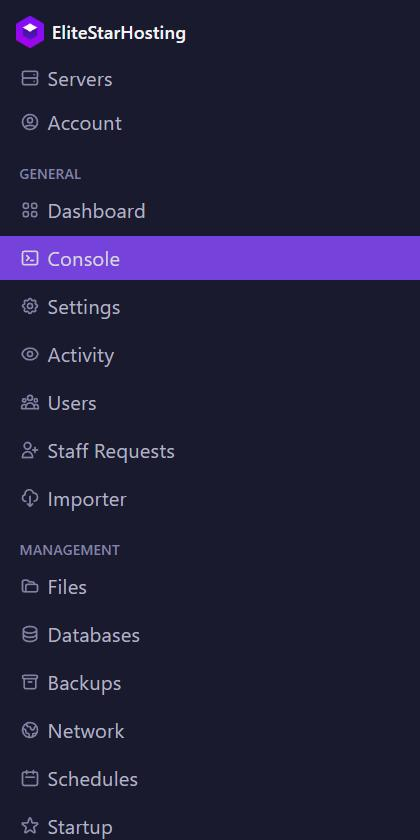
Click Activity in the menu. You see the Activity Log, with the newest lines at the top.
Every line has four columns:
- User: who did it. If it says System, the panel did it itself, for example when a backup finished.
- Event: what happened, as a short code.
- IP Address: from which IP address. You only see your own IP address, for others this field stays empty.
- Timestamp: how long ago. Hover over it to see the exact date and time.
Is there a small button at the end? It opens Metadata with more details, such as the names of files. A folder icon before the name means the action went through SFTP.
Read the codes
server:power.start,server:power.restartandserver:power.stop: the server was started, restarted or stopped.server:console.command: someone sent a command through the console.server:file.write,server:file.deleteandserver:file.rename: a file was saved, deleted or renamed in Files. Just opening a file is logged too, asserver:file.read.server:sftp.writeandserver:sftp.delete: a file was changed or deleted over SFTP.server:backup.startandserver:backup.restore: a backup was made or restored.server:startup.edit: a variable under Startup was changed.server:subuser.create,server:subuser.updateandserver:subuser.delete: a subuser was added, changed or removed.
Actions through the console and SFTP can take up to a minute to appear.
Search and filter
Click a name, code or IP address in the list to see only those lines. Or click Activity Filters and choose a Subuser, an Event, an IP Address or a period with Logs since and Logs until. Active filters are shown at the top. Click the cross to remove one.
Did your server restart last night, but you can't find server:power.restart? Then it was probably a task from Schedules or a crash. Those don't show up as an action in the log.
Who sees the log?
As the owner, you see the whole log. A subuser only sees the page with the ACTIVITY permission. Only give it to people who need it, because they then also see what you and others do on the server.
Privacy
- Other people's IP addresses stay hidden, also from you as the owner. Only panel administrators can see them.
- Sharing your screen or streaming? Then turn on Privacy Mode under Account, General tab. The panel then makes sensitive details such as IP addresses unreadable.
- The panel keeps activity for 90 days and deletes older lines automatically.
- What players do in the game is not in here. For Minecraft you see that with CoreProtect.
- Your own logins and account changes are kept separately, under Account in the Activity tab.