Since 21 October 2026, you manage what players see in the FiveM server list in the Cfx.re portal: your server's name, description, tags, language, banner, icon and Discord link. Before that, it all came from your server.cfg.
So the fields Hostname, Tags, Locale, Project Name and Project Description in the server.cfg editor no longer change your listing. You can simply leave them as they are.
Cfx.re copied existing details where it had them. Does your server show up in the list as Missing server data (must be configured in Portal)? Then they're still missing and you fill them in yourself.
Filling in your details
- Log in to the Cfx.re portal with the account you created your license key with.
- Go to Server Registration Keys and open the key your server uses.
- Fill in the name, description and language, and choose up to five tags.
- Add a banner, an icon and, if you have one, the link to your Discord, then save everything.
Players can search on tags, so choose five words that really fit your server, such as roleplay or drift.
Image sizes:
- Banner: 2560 x 280 pixels recommended, at least 1825 x 200.
- Icon (profile image): 512 x 512 pixels recommended, at least 256 x 256. So an old 96 x 96 icon is too small.
What you still set in the server.cfg
Player slots
The number of slots the list shows comes from Max Players in the server.cfg editor.
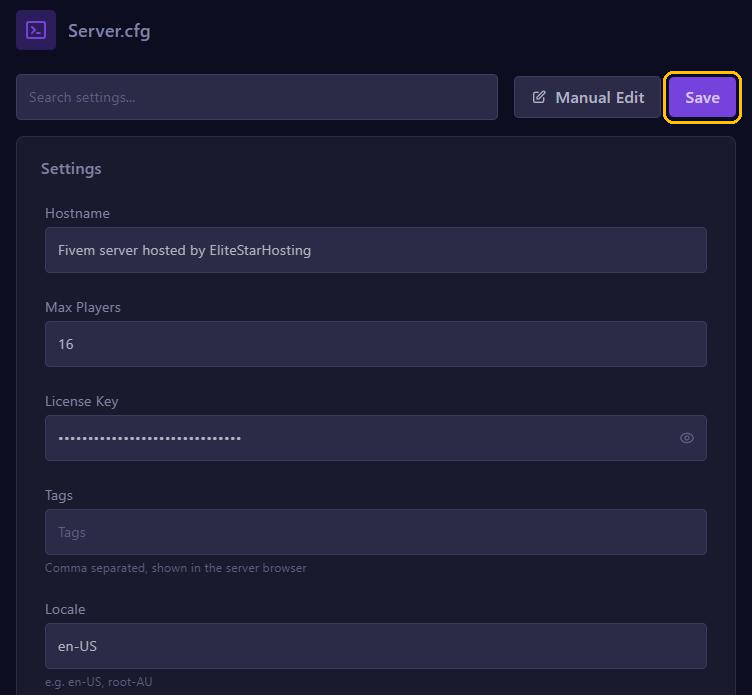
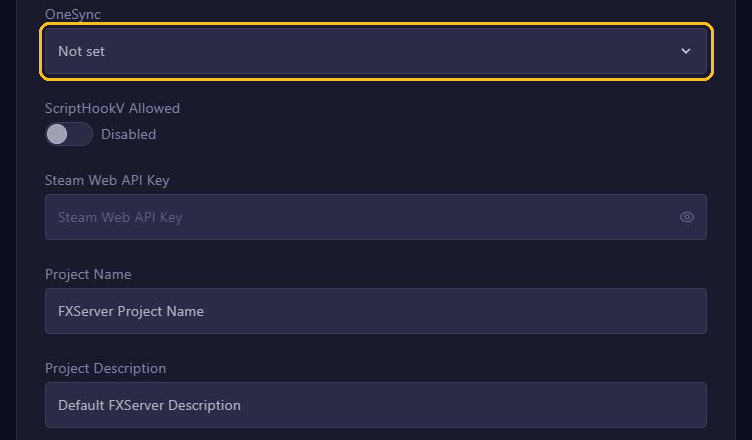
Click Save and restart your server. More than 32 players also need OneSync. txAdmin turns it on by default, under Settings, tab FXServer, so leave OneSync in the server.cfg editor on Not set: txAdmin switches off a onesync line in your server.cfg anyway.
A private server
Don't want players to join through the server list, for example while you're still building? Add this line with Manual Edit in the server.cfg editor:
sv_master1 ""The connect button in the list is then disabled. Your server does stay in the list: this line doesn't remove it. Players then connect with F8 and connect followed by your server address.
A lock for your allowlist
Turn on the allowlist in txAdmin, and the list shows a lock next to your server by itself, with your explanation of how players get access. See Whitelist and bans with txAdmin.
Using an allowlist script of your own? Then add these lines:
sets sv_appearAllowlisted true
sets sv_allowlistInstructions "Apply through our Discord"
This only changes how your server appears in the list. Who can actually join is up to your script.
After every change to the server.cfg, click Save and restart your server.