With txAdmin you decide who can join your FiveM server and deal with players who break the rules. In txAdmin, the whitelist is called Allowlist; older versions still say Whitelist.
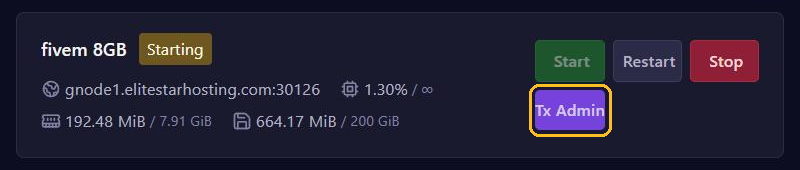
Open txAdmin with the Tx Admin button at the top of your server page in the game panel.
Turning on the allowlist
- In txAdmin, go to Settings and open the Allowlist tab.
- Under Allowlist Mode, choose how players get access.
- Under Allowlist Instructions, explain how players can request access, for example through your Discord. Most modes require this.
- Click Save Allowlist Settings.
The choices under Allowlist Mode:
- Disabled: anyone can join. txAdmin only checks for bans.
- Admin-only (maintenance mode): only your admins in txAdmin get in. Handy during maintenance.
- Approved License: you approve every new player yourself.
- Discord Server Member: players must be a member of your Discord server.
- Discord Server Roles: players need one of the roles you enter under Allowlisted Discord Roles in your Discord server.
- External Allowlist Resource: you use an allowlist script of your own.
For the two Discord modes, first turn on the txAdmin Discord bot on the Discord tab.
When the allowlist is on, the FiveM server list shows a lock next to your server, and players see your Allowlist Instructions there. txAdmin does this itself with sv_appearAllowlisted and sv_allowlistInstructions; you don't need to add them to your server.cfg. See also Your server in the FiveM server list.
Approving players
With Approved License, a player who hasn't been approved yet gets a message with a Request ID, such as R1234, when they try to join.
- Ask the player for that Request ID.
- In txAdmin, open Allowlist in the menu at the top.
- Find the ID under Allowlist Requests and click the tick (Approve). The cross (Deny) turns the request down.
Already know who may join? Under Approved Allowlists Pending Join, click Add Approval and enter one of the player's identifiers, for example one that starts with license: or discord:.
Warning, kicking and banning
Open Players in txAdmin and click a player. In the window that opens, choose:
- Warn: the player gets a warning on screen. txAdmin keeps it on the player's History tab.
- Kick: removes the player from the server. They can simply join again afterwards.
- Ban: open this tab, enter a Reason and choose how long under Duration: from 2 HOURS to 2 WEEKS, Permanent, or a duration of your own with Custom. Then click Apply Ban.
In the same window, Allow next to ID Allowlisted puts a player on the allowlist straight away.
Are you in the game yourself? Type /tx in the chat for the txAdmin menu. You can warn, kick and ban there too, if you are an admin in txAdmin.
A ban applies to all of the player's identifiers and their hardware, so a new account usually doesn't get someone around a ban.
On the Bans tab under Settings you create Ban Templates with set reasons and durations. Under Ban Rejection Message you add where banned players can appeal.
Want to take back a ban or warning? Find it under History, open it and, on the Revoke tab, click Revoke Ban or Revoke Warn.
Permissions for your moderators
Give every moderator their own txAdmin account, as explained in Admins and permissions on your FiveM server. That guide also shows how to look up a player's identifier. The allowlist needs the players.whitelist permission, and warning, kicking and banning need players.warn, players.kick and players.ban.