txAdmin has a Discord bot built in. It posts a live status message in your Discord, announces restarts and can let only players with a certain Discord role into your server.
1. Create the bot in Discord
- Open the Discord Developer Portal, click New Application, enter a name and click Create.
- Go to Bot, click Reset Token and copy the token straight away: Discord only shows it once.
- Further down, under Privileged Gateway Intents, turn on Server Members Intent and click Save Changes.
- Go to Installation. Under Default Install Settings, add the scopes
applications.commandsandbotto Guild Install, choose the permissions Send Messages and Embed Links and save. - Open the link under Install Link, choose Add to server, select your Discord server and click Authorize.
The token is a password: whoever has it controls your bot. Never share it, not in a ticket and not in a screenshot. txAdmin keeps it in the txData folder of your server, so don't share that folder either. Leaked? Click Reset Token again and fill in the new token in txAdmin.
Never give the bot Administrator or other management permissions, such as Manage Server, Manage Roles or kicking and banning members, not even through a role in your Discord. txAdmin then switches the bot off: for your safety the bot has been disabled.
2. Connect the bot in txAdmin
- In Discord, turn on Developer Mode under User Settings, Advanced. Right-click your server icon and choose Copy Server ID.
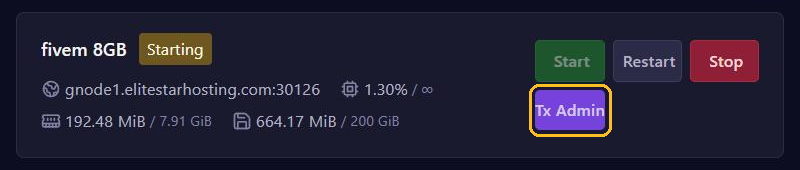
- Click Tx Admin at the top of your server page in the game panel, go to Settings and open the Discord tab.
- Set Discord Bot to Enabled. Fill in the token in Token and the server ID in Guild/Server ID.
- Optional: in Warnings Channel ID, enter a channel ID for announcements about restarts (Copy Channel ID).
- Click Save Discord Settings. In the bar on the left, Discord Bot now shows READY.
3. A live status message
The bot only listens to txAdmin admins. So go to Admins, click Edit next to your account, enter your user ID under Discord ID (Copy User ID in Discord) and click Save.
Then type /status add in the Discord channel where the message should go. The bot shows the status there, with the number of players and the next restart, and updates it every minute. /status remove takes it away.
On the Discord tab, under Status Embed JSON, replace the example connect 123.123.123.123 with your own address, such as connect gnode1.elitestarhosting.com:30126, and click Save Discord Settings. Texts and buttons are under Status Config JSON. Something went wrong? Reset to Default brings back the original.
4. Only players with a Discord role
- In Discord, open Server Settings and then Roles, right-click the role that gets access and choose Copy Role ID.
- In txAdmin, go to Settings, tab Allowlist, and choose Discord Server Roles under Allowlist Mode.
- Paste the ID in Allowlisted Discord Roles. Separate several roles with commas.
- Fill in Allowlist Instructions and click Save Allowlist Settings.
Players need the Discord app open on their computer when they start FiveM; the web version doesn't work. More about the allowlist: Whitelist and bans with txAdmin.
Not working?
does not have a required privileged intent: turn on Server Members Intent.could not resolve guild/server ID: the bot isn't in your Discord server, or the ID is wrong.