With DiscordSRV, messages from your Minecraft server chat show up in a Discord channel, and the other way around. Joins, leaves and deaths appear there too. DiscordSRV works on Paper and Purpur. Version 1.30.5 supports Minecraft 1.21.11 and 26.1 up to and including 26.3.
1. Install DiscordSRV
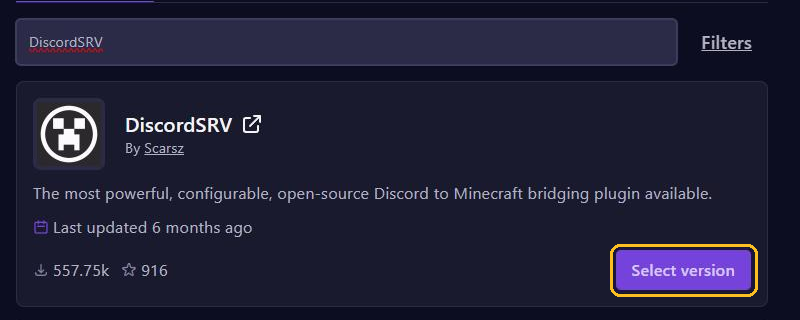
- In the game panel, go to Plugins and search for
DiscordSRV. - Click Select version on DiscordSRV by Scarsz, pick your version and click Install plugin.
- Restart your server. DiscordSRV then creates the
plugins/DiscordSRVfolder with the fileconfig.yml.
2. Create a bot
- Go to the Discord Developer Portal and click New Application.
- Open Installation, turn off User Install and set Install Link to None.
- Open Bot and turn on Server Members Intent and Message Content Intent. Leave Public Bot off, so nobody else can invite your bot.
- Click Reset Token and copy the token that appears.
The token works as your bot's password. Never share it, not even with us, and never take a screenshot of your config.yml. Has it leaked anyway? Then click Reset Token again straight away and fill in the new one.
3. Invite the bot
- Under General Information, copy the Application ID.
- Open
https://discordapp.com/oauth2/authorize?scope=bot+applications.commands&client_id=in your browser, with your Application ID at the end. - Pick your Discord server and click Authorize.
- Give the bot a role of its own. In your chat channel it needs to see and send messages. Extra features, such as syncing roles, need more permissions: the DiscordSRV guide lists which ones.
4. Set up the channel
- Turn on Developer Mode in Discord, under Settings in Advanced.
- Right-click the channel for the chat and choose Copy Channel ID.
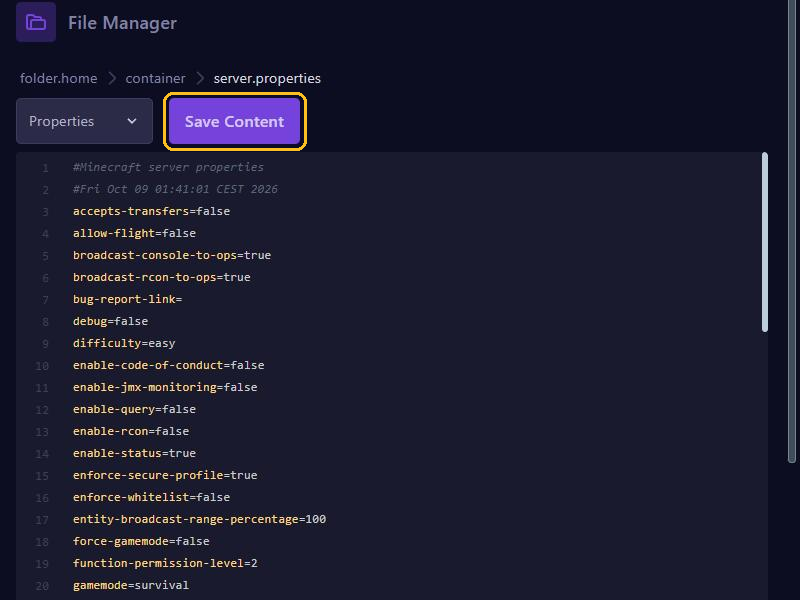
- In the File Manager, open the file
plugins/DiscordSRV/config.yml. - Fill in your token at
BotTokenand the channel ID atChannels, as in the example below. - Click Save Content and restart your server.
BotToken: "your-token-here"
Channels: {"global": "123456789012345678"}
Leave the word global as it is: it is the name of the chat in Minecraft, not of your Discord channel.
A console channel, for staff only
With DiscordConsoleChannelId you link a second channel to the console. Everything you type there, your server runs with full rights. So use a private channel that only your admins can see. Commands such as op and execute are on a block list in DiscordConsoleChannelBlacklistedCommands by default.
Linking accounts
Players link their Minecraft account to Discord with /discord link. They get a code, which they send to the bot in a direct message. /discord unlink removes the link again. In MinecraftDiscordAccountLinkedConsoleCommands you set a command the server runs as soon as someone links, for example for a small reward.
Not working?
- Check the console while the server starts. DiscordSRV reports an invalid token or missing intents there.
- Messages from Discord don't reach Minecraft? Check that Message Content Intent is on.
- Already using EssentialsX? Then the EssentialsX Discord module is a lighter alternative.