How to keep a server with mods stable without losing your world.
A backup first
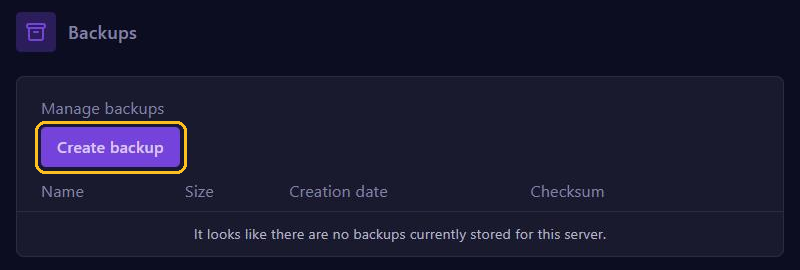
Before every change to your mods, make a backup with Create backup. Only a backup can undo a removed mod or a failed update.
Update a modpack safely
- First read the changelog. If mods are dropped, their blocks disappear from your world too.
- Stop your server, make a backup and download it with Download.
- Write down your own changes in the config folder.
- Go to Modpacks, search for the same modpack, click Select version and pick the new version. If there's an option to wipe all files, leave it off.
- Check in Files that your world folder,
server.properties,ops.jsonandwhitelist.jsonare still there. Upload anything missing from your downloaded backup. - Put your own settings back: a modpack often overwrites files in config.
- Start your server and follow the console. Have your players install the same version.
Want to go back to the old version? Then restore your backup.
Add a mod
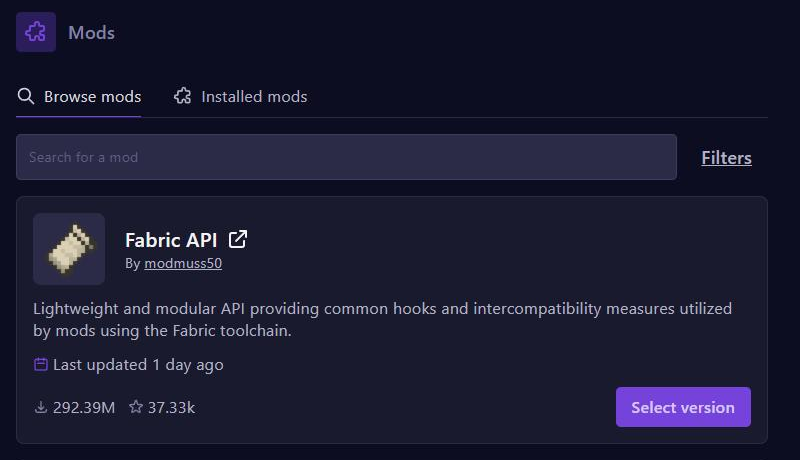
Search for the mod under Mods, click Select version and pick a version for your server type and Minecraft version. Also install the mods it needs, such as Fabric API. If one is missing, a Fabric server stops with Incompatible mods found!. If the mod adds blocks or items, your players need it too.
Remove a mod
In Files, open the mods folder and delete the mod's .jar file, or Move it to another folder. First check that no other mods need it.
Note: that mod's blocks, items and creatures disappear from your world, chests included. Even a test start without the mod can do this. Only a backup brings them back.
Mods that belong with the player
Mods such as Sodium, Iris (shaders) and Mod Menu only belong in the player's game. On the server they do nothing or make it crash. On Fabric you then see, for example, Cannot load class ... in environment type SERVER. On Modrinth you see for each mod whether it's for the client, the server or both.
Errors about mismatched mods
If a player has different mods than the server, they can't get in. Common messages:
- NeoForge and Forge:
Your client is missing the following modsorThe following mod versions do not match. Older Forge versions showmismatched mod channel list. - Fabric:
registry entries that are unknown to this client, with the mods that are probably missing below it.
The fix: the same mod loader, Minecraft version and mods, in exactly the same versions. With a modpack: the same version as the server.
The right Java version
Your modpack needs the Java version of its Minecraft version:
- 26.1 and newer: Java 25
- 1.20.5 up to and including 1.21.11: Java 21
- 1.17 up to and including 1.20.4: Java 17
- 1.16.5 and older: usually Java 8
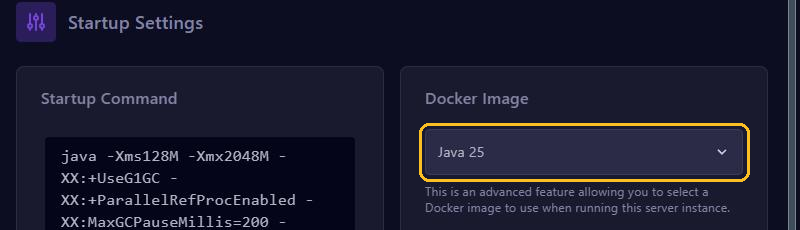
Choose it under Startup at Docker Image and restart. UnsupportedClassVersionError means Java is too old. An error about java.net.URLClassLoader with a modpack for 1.12.2 means Java is too new.
Read crash reports
If your server crashes, open the newest file in the crash-reports folder. The first mod in the lines starting with at is often the cause. System Details shows your Java version, the memory and, on Fabric, your mods. Read more in Minecraft server crashes or won't start.