Is your Minecraft server crashing, or won't it start anymore? The cause is almost always in the logs. Here you read where to find them, which lines matter and how to fix the most common problems.
Start with the console
First look at the console. The last lines before the crash often tell you enough. Click Error to see only the error messages.
When your server crashes, the panel reports it in the console with Detected server process in a crashed state!. Below that you see the Exit code and the Out of memory line. If it says Out of memory: true, your server used more memory than your plan has.
After a crash the panel usually starts your server again by itself. If it crashes again shortly after, the panel stops trying and you see Aborting automatic restart.
latest.log: your server's log
Everything that appears in the console is also written to a file. Open Files in the game panel and go to the logs folder. There you find latest.log: the log of the last time your server ran.
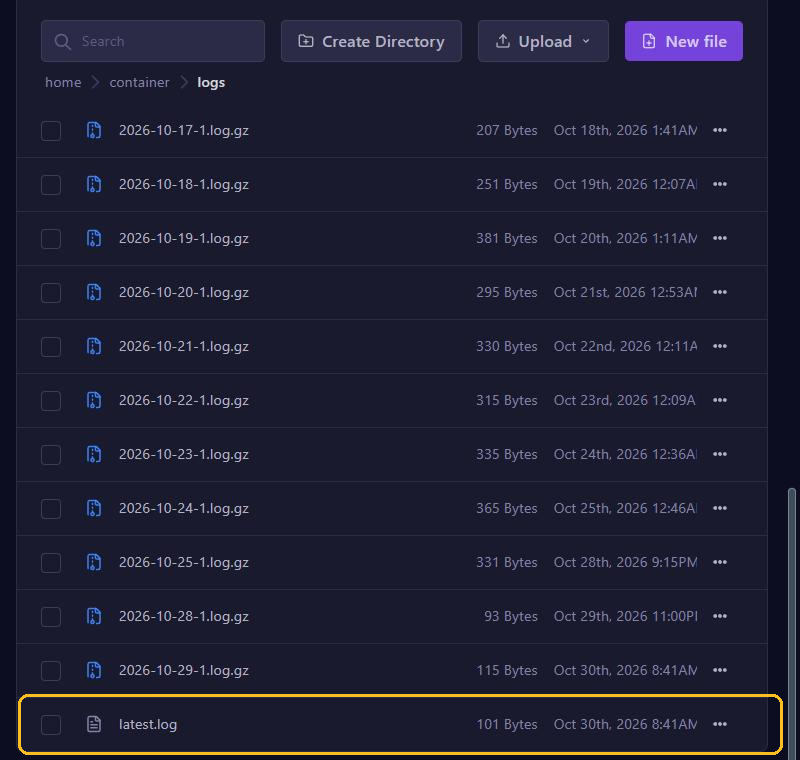
Older logs get the date in their name and are packed as .log.gz. Want to look at one? Download it with the three dots ... and open it on your computer with a program such as 7-Zip.
Click latest.log to open it. Look for lines with ERROR or WARN, and above all for the first error after startup. Later errors are often a result of that first one.
Crash reports
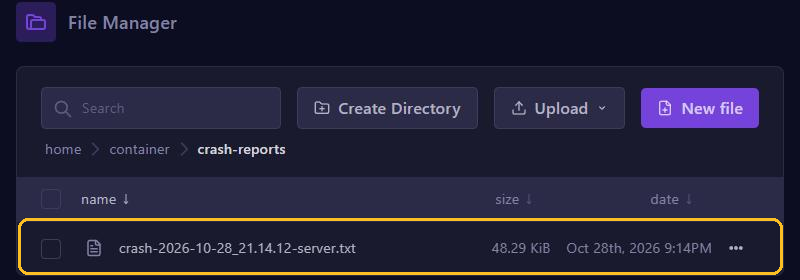
When Minecraft itself crashes, the server writes a crash report to the crash-reports folder. The name holds the date and time of the crash, such as crash-2026-10-28_21.14.12-server.txt. Open the newest one.
The most important lines are at the top of the crash report:
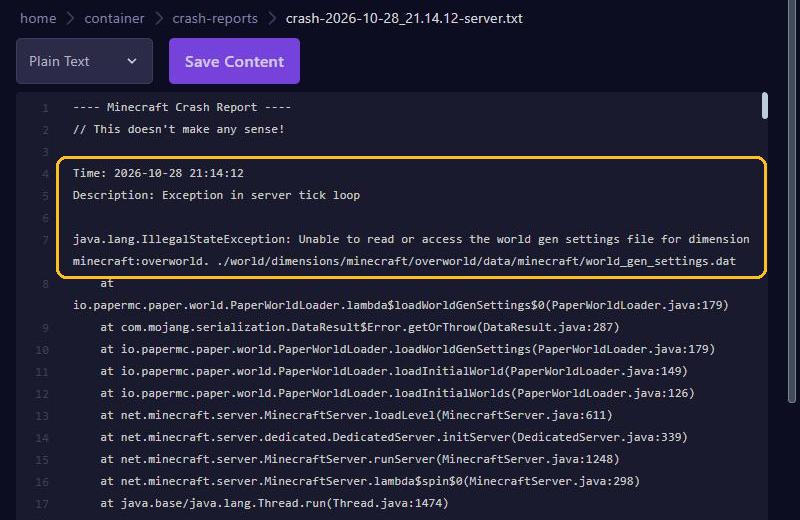
- Description sums up what went wrong.
Exception in server tick loopis a general message; the real reason is on the line below. - The line below it is the error itself. In this example the server can't read a file of the world: the world is damaged.
- The lines starting with
atshow where it went wrong. If you see the name of a plugin or mod there, that is often the cause. - At the very bottom, under System Details, you find your Java version and your server's memory, among other things.
Common causes and fixes
Make a backup before you change anything. Then change one thing at a time, so you know what helped.
Not enough memory
Do you see java.lang.OutOfMemoryError: Java heap space in the log, or Out of memory: true in the console? Then your server needs more memory than it has. Remove heavy plugins or mods, lower the view-distance or choose a bigger plan. Also read how much RAM your game server needs and our tips against lag.
Wrong Java version
UnsupportedClassVersionError means your server, a plugin or a mod needs a newer Java version. Pick a newer Java under Startup at Docker Image: see Startup settings.
Which Java goes with which version:
- Minecraft 26.1 and newer: Java 25
- 1.20.5 up to and including 1.21.11: Java 21
- 1.17 up to and including 1.20.4: Java 17
- 1.16.5 and older: usually Java 8
The server jar is missing
Unable to access jarfile or Invalid or corrupt jarfile means the server can't find its .jar file, or the file is damaged. Under Startup, check that SERVER JAR FILE matches the name of the .jar file in your main folder exactly. Or install your version again through Versions: see Change your Minecraft version.
A plugin or mod
Is a plugin or mod named in the error? Update it or remove it, and check that it supports your Minecraft version. If a plugin misses another plugin it needs (a dependency, such as Vault), the log says so too.
Don't know which one it is? Move half of your plugins or mods to another folder for a while and start your server. If the problem is gone, the cause is in the half you moved; if not, it is in the rest. Repeat until you find the culprit. Note: if you remove a mod, the blocks and items from that mod disappear from your world. So really make a backup first.
The world won't load
Is the error about your world or a chunk, like in the example above? Then restore a backup from before the problem, or start with a new world.
The port is taken
FAILED TO BIND TO PORT or Address already in use means a port is already in use. The panel sets your server port by itself, so it is usually a plugin with a port of its own, such as a live map, voice chat or Votifier. Give such a plugin an extra port of its own: see Ports and allocations.
Lag and "Can't keep up!"
Can't keep up! Is the server overloaded? is not a crash: your server is falling behind. If the server freezes for too long, Paper stops it with The server has stopped responding!. Under Server thread dump you can then often see which plugin was busy. How to track down lag with spark is explained in Fix Minecraft server lag.
The EULA
Does it say You need to agree to the EULA? Then click I Accept in the console. Read more in The console.
Asking for help
Still stuck? Then send us:
- The full error, including all the lines that start with
at. - What you changed just before the crash, such as a new plugin, an update or a different Minecraft version.
- Roughly what time the crash happened.
A long log is easiest to share through mclo.gs: paste your log there and send us the link. That site removes IP addresses automatically. You can reach us through support or on Discord.