Want to start over with a fresh world, or play on a seed you like? You set that up in a few steps in the game panel. Your old world is removed along the way, unless you keep it.
First: make a backup and stop
- Make a backup. Then you can always go back to your old world.
- Stop your server with Stop at the top of the server page. If you delete the world while the server is running, it saves parts of the old world again.
A new world with a random seed
- Go to Files. Your server's main folder has a folder called world.
- Click the three dots ... next to world and choose Delete.
- Do you also see the folders world_nether and world_the_end? Delete them too. Only a Paper server on a version older than 26.1 has them.
- Start your server. It creates a new world, which can take a moment.
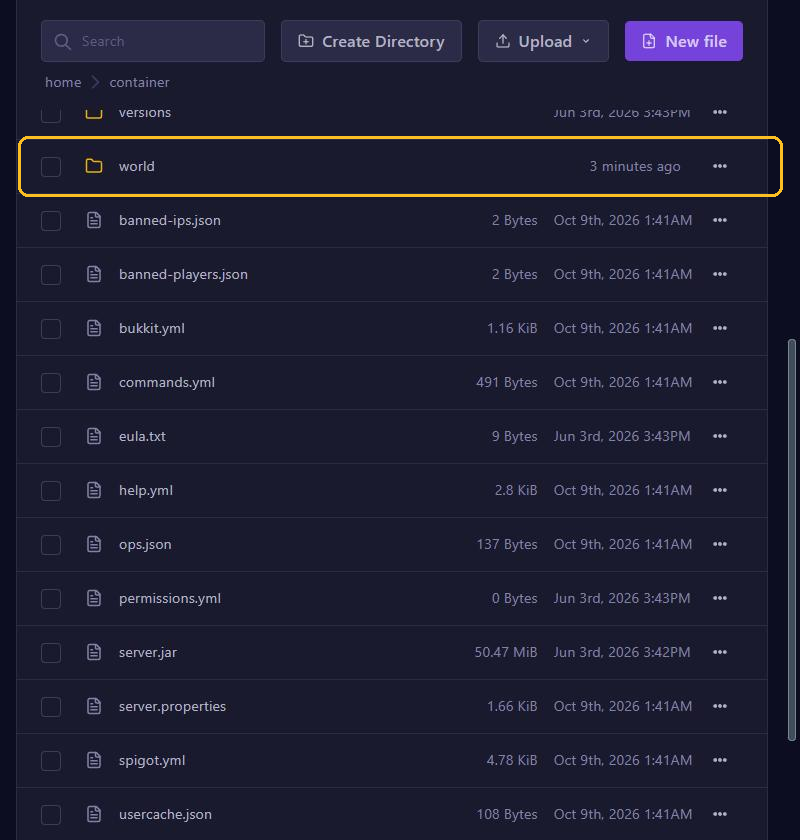
Does level-name in server.properties have a name other than world? Then your world folder has that name.
Only a new Nether or End
Since Minecraft 26.1, the Nether and the End are inside the world folder itself, on Paper too. Make sure your server is stopped and then do this:
- In Files, go to world, then dimensions and then minecraft.
- Delete the_nether for a new Nether, or the_end for a new End.
- Start your server.
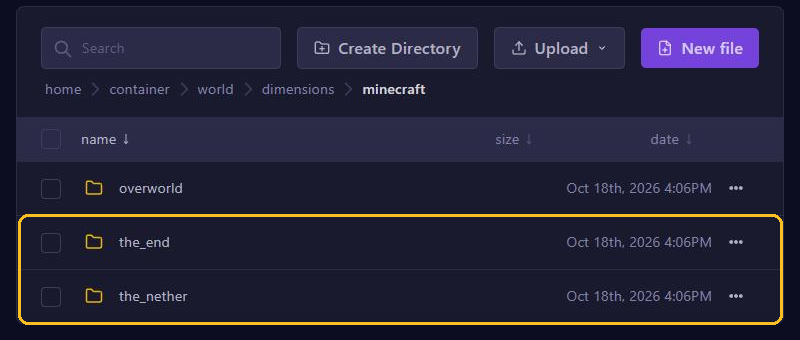
Is your server on a version older than 26.1? Then they are somewhere else. On Paper they are the world_nether and world_the_end folders in your main folder. On Vanilla, Fabric and Forge they are in the world folder: DIM-1 is the Nether and DIM1 the End.
A world with a specific seed
A seed is a code that decides what your world looks like. The same seed gives you the same landscape.
- Go to Config and click server.properties.
- Find
level-seedwith Search keys... and fill in your seed, for example123456789. - Click Save.
- Delete the world folders as described above and start your server.
The seed only works when the server creates a new world. For an existing world, changing level-seed does nothing. Want to know the seed of your current world? Type seed in the console.
Want a flat world? Then set level-type to minecraft:flat before the world is created. Other options are minecraft:large_biomes and minecraft:amplified. You find more settings in Set up server.properties.
Keeping your old world
Rather not delete anything? Give the new world another name:
- Go to Config, click server.properties and find
level-name. - Change
worldto, for example,world2and click Save. - Restart your server. It creates a new world in the folder world2.
Your old world stays in the world folder. Set level-name back to world to play on it again. Both worlds do use disk space from your plan.
Downloading your world
Want a copy of your world on your computer, for example as an extra backup?
- Stop your server, so the world is completely saved.
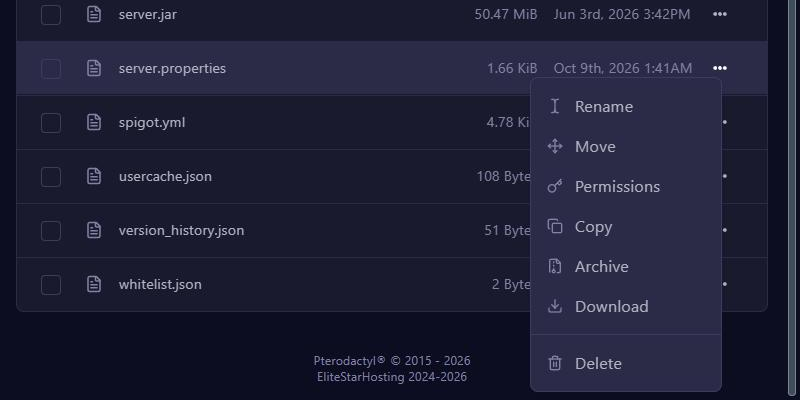
- In Files, click ... next to the world folder and choose Archive. The panel packs the folder into an archive file.
- Click ... next to the new archive and choose Download.
Delete the archive afterwards, so it doesn't take up space. Big worlds download faster over SFTP. There is more about the File Manager in Manage files. Fancy a ready-made map, such as OneBlock? Then see Install mods, modpacks and worlds.