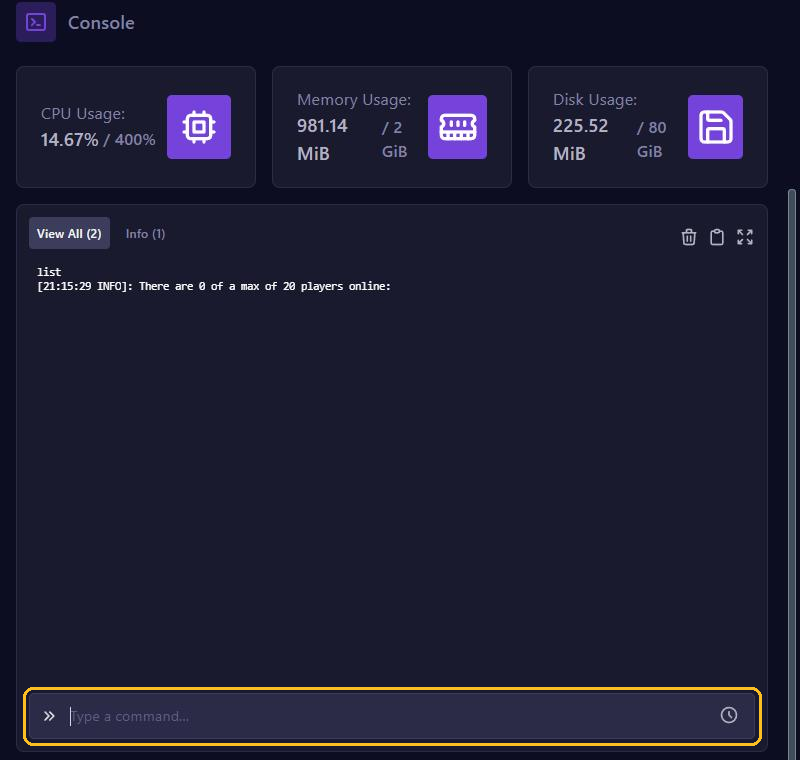
A few commands decide who can join your Minecraft server and who can manage it. You type them in the game panel's console, or in the game if you are an operator yourself.
In the console you type commands without the /, in the game with it. So whitelist add Steve in the console and /whitelist add Steve in the game.
Operators (op)
An operator can use admin commands, such as kicking players, changing the time or stopping the server.
op PlayerNamemakes someone an operator.deop PlayerNametakes those rights away again.
How much an operator can do depends on the level, from 1 to 4. By default a new operator gets level 4: every command, including stop. You set that level with op-permission-level in server.properties. Only give operator rights to people you really trust.
The whitelist
With a whitelist, only players on the list can join your server. Handy for a server with friends.
- First put yourself and your friends on the list with
whitelist add PlayerName. - Turn the whitelist on with
whitelist on. - Check the list with
whitelist list.
You remove someone with whitelist remove PlayerName, and whitelist off turns the whitelist off again. Want players who are not on the list to be removed straight away when you turn the whitelist on? Then set enforce-whitelist to true in server.properties.
Kicking and banning
kick PlayerName reasonremoves someone from the server. They can simply join again afterwards.ban PlayerName reasonkeeps someone out for good.pardon PlayerNamelifts a ban again.ban-ipandpardon-ipdo the same for an IP address. Note that this also blocks others on the same network.banlistshows who is banned.
Where it is stored
The server keeps this in files in your server's main folder: ops.json, whitelist.json, banned-players.json and banned-ips.json. You find them in the File Manager.
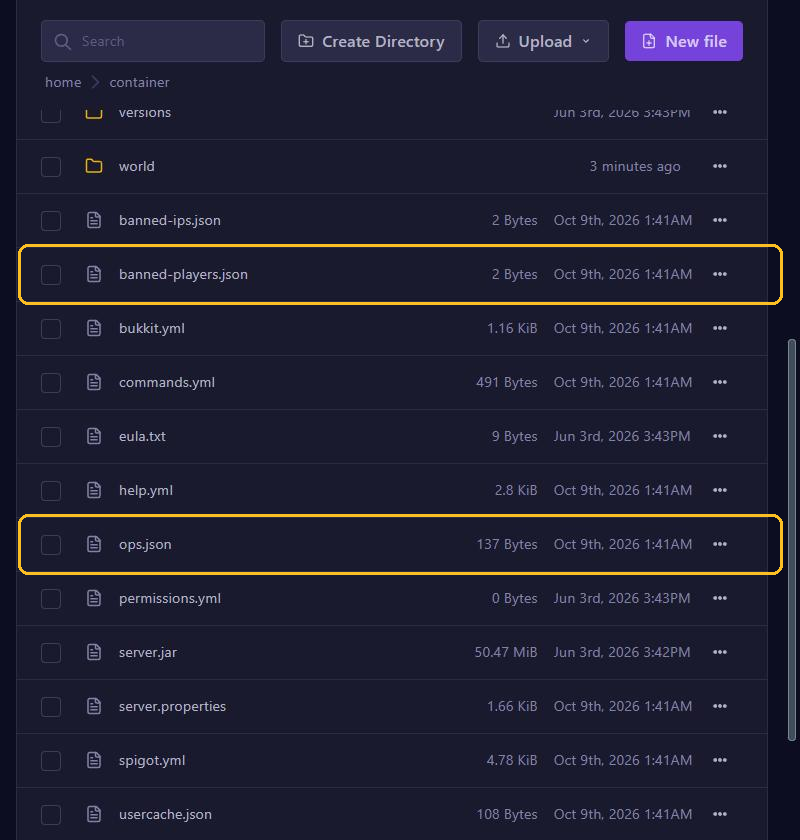
Preferably use the commands. If you edit one of these files yourself, stop your server first. After changing whitelist.json you can also type whitelist reload in the console.
Tips
- Type the player name exactly right. The server looks the account up with Minecraft, so a typo gives an error or the wrong player.
- Leave
online-modein server.properties set to true. Then the server checks that everyone has a real Minecraft account, and nobody can log in with your name.