After a patch from Coffee Stain, players on the new version can only join your Satisfactory server again once it runs the same version. The server and the players need the same branch (the regular version or Experimental) and the same version number.
Save first
- In the game, type
server.SaveGame before-updatein the Console tab of the Server Manager. This gives you a save with that name. The command doesn't work in the game panel's console. - In the game panel, go to Backups and click Create backup.
Updating: a restart is enough
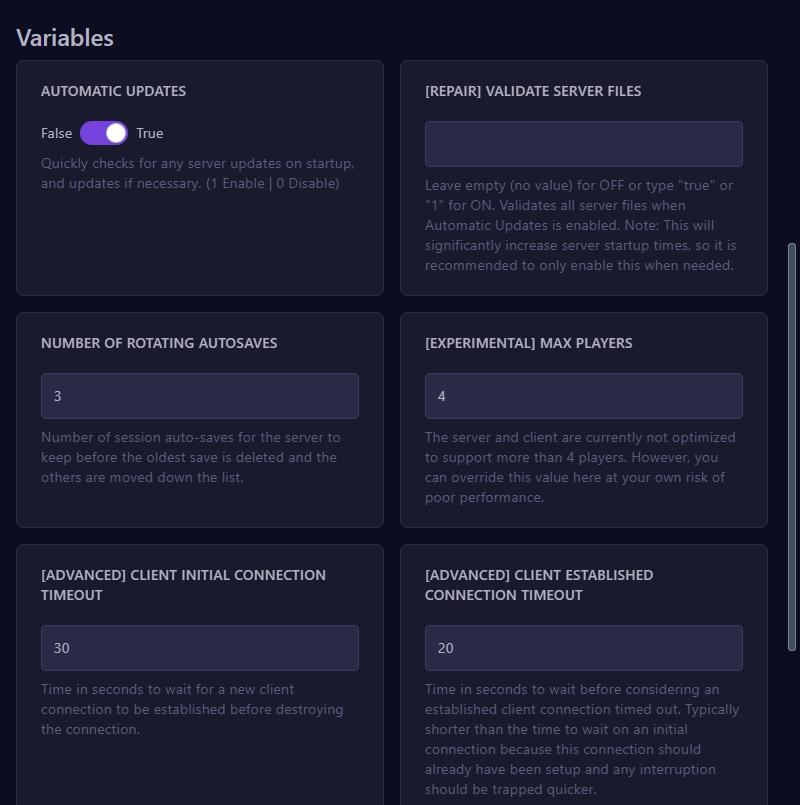
Under Startup, AUTOMATIC UPDATES is set to 1 by default. The server then checks through Steam on every start whether there is an update and installs it first. After a patch:
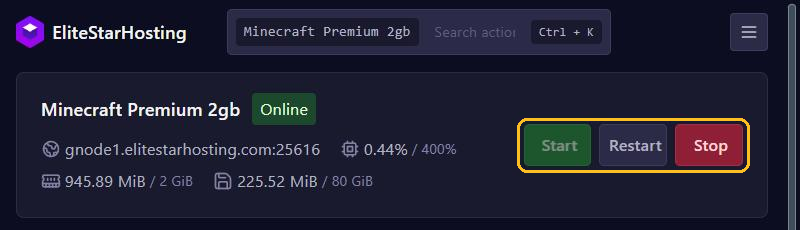
- Click Restart at the top of your server page.
- Watch the console: the update comes in first, then the server starts.
- Join once the server is Online again.
If AUTOMATIC UPDATES is set to 0, your server stays on the old version and players on the new version can't join. Set it to 1 and restart.
Want updates to come in by themselves? Then let your server restart every night with Schedules, at a time when nobody plays.
Not starting properly: [REPAIR] VALIDATE SERVER FILES
Does your server not start after an update, or does it keep crashing? Then let Steam check and repair all server files:
- Type
1at [REPAIR] VALIDATE SERVER FILES. AUTOMATIC UPDATES has to be1as well. - Restart your server. This start takes noticeably longer.
- Empty the field again afterwards, or every start takes that long.
Public or experimental: [ADVANCED] BRANCH NAME
public: the regular version that everyone gets by default.experimental: Coffee Stain's test version with new content. It can be unstable.
A player on the experimental version can't join a public server, and the other way round. Players switch to experimental in Steam: right-click Satisfactory, Properties, Game Versions & Betas and choose experimental. In the Epic Games Launcher it's a separate title: Satisfactory Experimental.
This is how you switch:
- Save and make a backup, as described above.
- Enter
experimentalat [ADVANCED] BRANCH NAME, orpublicto go back. - Set AUTOMATIC UPDATES to
1and type1at [REPAIR] VALIDATE SERVER FILES. - Restart your server and empty the [REPAIR] VALIDATE SERVER FILES field again afterwards.
Going back to public? Then really enter public and don't leave the field empty: Steam sometimes remembers the previous branch. A save made on experimental may not load on public. So keep your backup from before the switch. You read how to put a save back in Upload your own Satisfactory save.
Since 4 November 2026, Satisfactory supports crossplay with PlayStation and Xbox, but a dedicated server is PC only: players on a console can't join your server. You find more settings in Set up your Satisfactory server.