Do cars stutter, do scripts respond slowly or does your server fall behind? Often the problem is a single resource. These steps help you find which one.
1. Hitch warnings in the console
When there's a delay, the game panel's console shows lines like this one:
server thread hitch warning: timer interval of 250 millisecondsThe higher the number, the longer the server got stuck. A few of these messages while the server starts are normal: it's loading everything then. If they keep coming back while players are online, something is holding your server up. Sometimes it says sync thread or network thread instead of server thread.
2. The chart in txAdmin
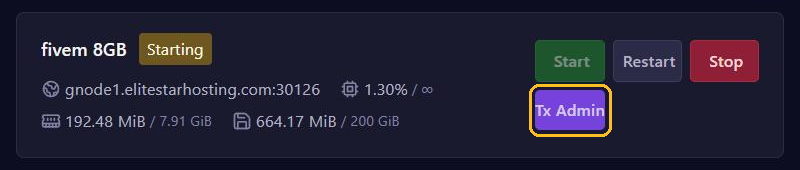
Click Tx Admin at the top of your server page. The txAdmin dashboard has a chart with your server's performance next to the number of players. That tells you when things go wrong, but not which resource causes it. Read more about txAdmin in Open and use txAdmin.
3. resmon in the game
resmon is FiveM's resource monitor. It shows how much CPU time and memory each resource uses on your computer.
- Turn on developer mode: add
+set moo 31337to the target of your FiveM shortcut. - Join your server, press F8 and type
resmon true. - Go to a place where it stutters and see which resources are at the top.
- Turn the monitor off with
resmon false.
Without developer mode you get Access denied for command resmon. FiveM's Beta update channel also turns on developer mode, but it can be less stable. On FiveM for GTA V Enhanced, +set moo 31337 doesn't work: the server needs sv_devMode true there, and then only 8 players can join. So only do that on a test server.
There is no official limit. A rule of thumb many hosts use: a resource that isn't doing anything stays below about 0.1 ms. Mostly watch the resources that keep showing up at the top.
4. The profiler on the server
For the server itself there's the profiler. Type in the game panel's console while the stutter is happening:
profiler record 500records 500 frames.profiler statusshows whether the recording is still running.profiler saveJSON lag.jsonsaves the recording when it's done. The file ends up with your server files; download it from Files.- Open Google Chrome, press Ctrl + Shift + I and go to Performance. Right-click in the panel and choose Load profile.
Rather not download it? Type profiler view and open the link the console gives you in Chrome.
The yellow graph, the CPU time, shows peaks. Zoom in on a peak with your scroll wheel and hover over a resource's blocks. You then see how many milliseconds it took, with the file and the lines in the code.
For low FPS on the players' side, the profiler also works in the game's F8 window.
Common causes
- Loops with
Wait(0): a script that checks something every frame, even when it doesn't need to. - Slow database queries: a script that sends very frequent or very large queries to the database.
- Resources you start but don't use. Remove their
ensurelines under Resources in the server.cfg editor. - Very large texture files (
.ytd) of cars, clothing or maps. Choose lighter versions, see Add custom cars, maps and clothing.
Found the resource? Turn it off for a while and see if the lag goes away. Then look for an update or report it to its maker.