Minecraft comes in two versions: Java Edition for computers and Bedrock Edition for phones, tablets, consoles and Windows. The Geyser plugin lets Bedrock players join your Java server, and with Floodgate they don't even need a Java account. Geyser works on a server type with plugins, such as Paper or Purpur. Is your server on an older Minecraft version? Then also install ViaVersion.
Been using Geyser for a while? Since Bedrock 26.60 (27 October 2026), Bedrock only connects through NetherNet, a new connection method. Update Geyser to the newest version and set it up as in step 2. Did your players use your Java server's port? Then they change the port in their saved server.
1. Install Geyser
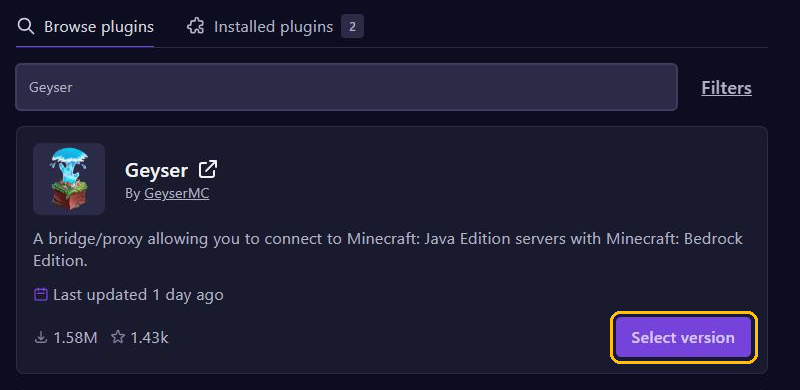
In the game panel, go to Plugins and search for Geyser. Click Select version on Geyser by GeyserMC, pick a paper version, click Install plugin and restart your server. There is more about this in Install plugins.
2. A port of its own for Bedrock
Bedrock first connects over TCP and then plays over UDP. That's why Geyser needs a port of its own for both. Your Java server's port won't do, because Java already uses TCP on it.
- Go to Network and click Create Allocation. Your server gets an extra port straight away.
- Write something like Bedrock in Notes.
- In Files, open
plugins/Geyser-Spigot/config.yml. - Change these lines under
bedrock:, with your new port number:
bedrock:
  clone-remote-port: false
  port: <your extra port>
  transport: nethernet
Click Save Content and restart your server. There is more about extra ports in Ports and allocations.
3. Floodgate: play without a Java account
Without Floodgate, Bedrock players also have to sign in with a Java Edition account. With Floodgate, their Bedrock account is enough. The Paper version of Floodgate isn't in the panel's plugin list, so you upload it yourself:
- Download Floodgate for Spigot/Paper from geysermc.org/download. The file is called
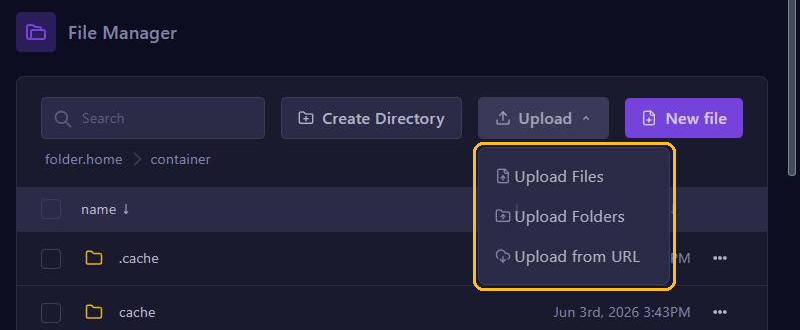
floodgate-spigot.jar. - In the panel, open Files, go to the plugins folder, click Upload and choose Upload Files.
- Restart your server.
- In
plugins/Geyser-Spigot/config.yml, setauth-type: floodgateunderjava:. Click Save Content and restart again.
Floodgate creates a file called key.pem. Never share it: with that key, someone can get around the login check. There is more about uploading in Manage files.
Connecting from Bedrock
In Minecraft Bedrock, go to Play, open the Servers tab and choose Add Server. Fill in:
- Server Address: your server address without the port, for example
gnode1.elitestarhosting.com. - Port: the extra port you set for Geyser.
The first time, Minecraft asks whether you trust the server. That's normal with Geyser: confirm it. On Xbox, PlayStation and Switch you can't add a server yourself. Geyser explains the workarounds in Using Geyser with Consoles.
Bedrock players on the whitelist or as operator
By default, Floodgate puts a dot in front of Bedrock player names, for example .Player123, and turns spaces into underscores. Use that name with op. For the whitelist, Floodgate has its own command, without the dot: fwhitelist add Player123. See also Operators, whitelist and bans.
Not working?
- Watch the console while your server starts: Geyser reports most problems there. Does it say the Java server already uses the port? Then check
clone-remote-port: falseand the port from step 2. - Players need an up-to-date Bedrock, version 26.40 or newer.