Since 2026, Minecraft Java Edition uses years as version numbers: after 1.21.11 came 26.1, 26.2 and 26.3. Every new version brings new blocks and features. This is how you move your server over without losing your world.
An update only works one way. Once your server has loaded your world in a new version, you can't take that world back to the old version. That's why you start with a backup.
1. Prepare
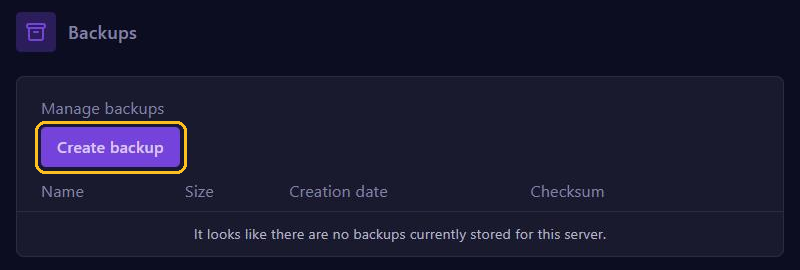
- Under Backups, make a backup with Create backup. Give it a name you'll recognise, such as
before-update. - Check that your plugins already support the new version. That's on their page, for example on Modrinth. After a new Minecraft version, big plugins sometimes need a few days or weeks.
- Running mods or a modpack? Then wait until every mod has a version for the new Minecraft version. Without those versions, your server won't start.
2. Choose the right Java version
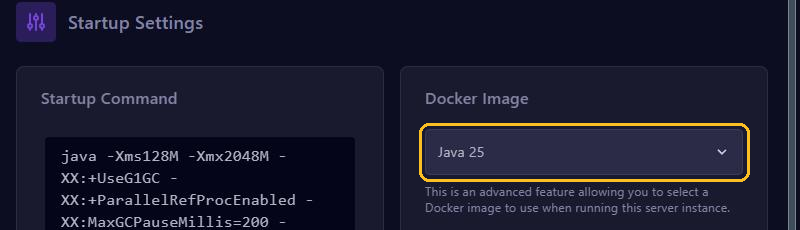
Minecraft 26.1 and newer needs Java 25. Go to Startup and choose Java 25 under Docker Image. Coming from 1.21.11 or older? Then this probably still said Java 21. You read more about this page in Startup settings.
3. Install the new version
- Stop your server.
- Go to Versions, click your server type, for example Paper, and click the new version.
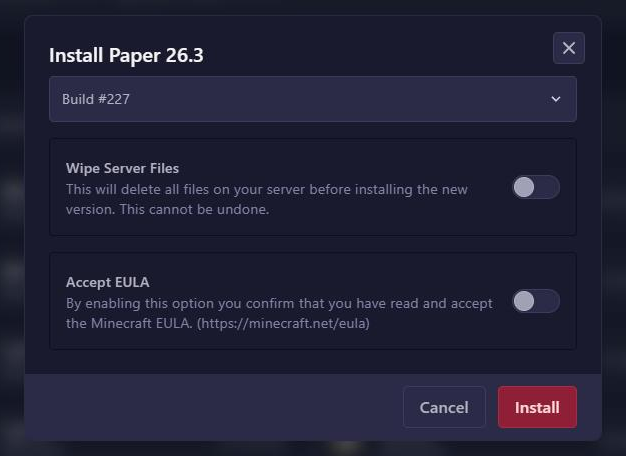
- In the window, leave Wipe Server Files off. With that option on, you delete your world too.
- Turn on Accept EULA and click Install.
- Start your server and follow the console. The first start after an update takes longer, because your server converts the world to the new version.
Then also update your plugins to their newest version, through Plugins.
Error: chunk saved with newer version
Do you see a message like this one in the console?
Server attempted to load chunk saved with newer version of minecraft! 5023 > 4903Then (part of) your world was saved by a newer Minecraft version than the one your server runs now. The first number is the world's version, the second your server's. This happens when you go back to an older version after an update, or when you upload a world that was played in a newer version.
This is how you fix it:
- Install the version the world was saved with again through Versions, or a newer one.
- Or restore the backup you made before the update, and stay on the old version.
Don't delete chunks or region files to get rid of the message. That way you lose parts of your world.
A plugin no longer starts?
Seeing errors about a plugin after the update? Check whether there's a newer version of it, or remove it for a while. How to read the error is explained in Minecraft server crashes or won't start.