BlueMap shows your Minecraft world as a 3D map in your browser, even when you are not in the game. The map updates itself while people build and shows where players are. Handy for a community: players use it to find their base or the spawn.
BlueMap runs a small web server of its own for the map. That needs a port of its own, next to the Minecraft port.
Step 1: Install BlueMap
- Open your server in the game panel and go to Plugins.
- Search for
BlueMapand click Select version on BlueMap by BlueColored. - Pick a version that matches your Minecraft version and click Install plugin.
- Restart your server. BlueMap then creates its settings files.
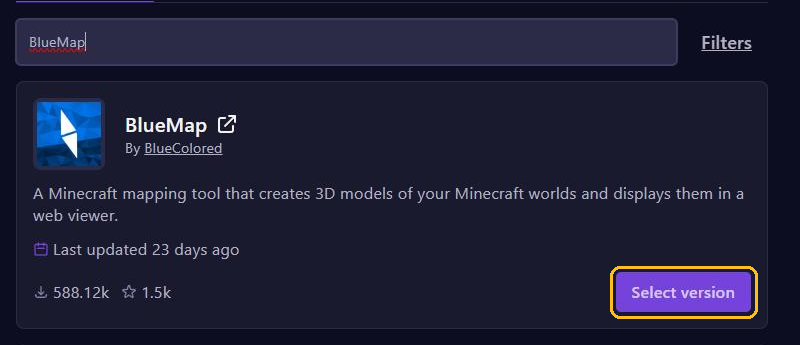
Does your server run Fabric, Forge or NeoForge? Then install BlueMap through Mods, see Install mods, modpacks and worlds.
BlueMap needs Java 25. Minecraft 26.1 and newer already runs on it. If your server uses an older Java, pick Java 25 under Startup at Docker Image. See Startup settings.
Step 2: Create an extra port
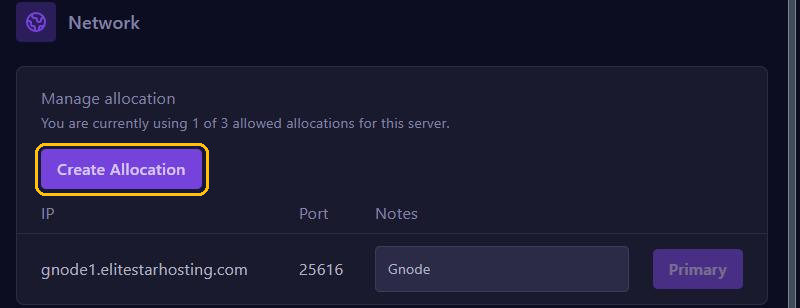
- Go to Network and click Create Allocation.
- Note the number of the new port, for example
25617. - Under Notes, write what the port is for, for example BlueMap.
You read more about extra ports in Ports and allocations.
Step 3: Set up BlueMap
The settings are in the File Manager, in the plugins/BlueMap folder. On Fabric, Forge and NeoForge that is config/bluemap.
- Open
core.confand changeaccept-download: falsetoaccept-download: true. That allows BlueMap to download the Minecraft files it needs to draw your world. - Open
webserver.confand replace the default port8100with your new port, so for exampleport: 25617. - Save both files and restart your server.
BlueMap now starts rendering your world. Type bluemap in the console to see the progress. With a big world the first time takes a while; after that, BlueMap only updates what changes.
Viewing the map
In your browser, open http:// with your server address and your new port, for example http://gnode1.elitestarhosting.com:25617. Use your mouse to turn and zoom the map. The map's menu lets you pick another world.
Useful commands
Normally you don't need to do anything: BlueMap notices changes by itself. If you do want to control something, type these commands in the console, or in the game with a / in front:
bluemap mapsshows all maps with their names. Fill in such a name where it says<map>below.bluemap stoppauses rendering andbluemap startturns it back on. Handy when your server is busy for a while.bluemap freeze <map>stops updating that map, andbluemap unfreeze <map>undoes that.bluemap purge <map>wipes the map and renders it again, for example after you changed that map's settings.bluemap reloadreads the settings again, without a restart.
Good to know
- Anyone with the link can view your map: your whole world and, by default, where players are right now. Don't want to show players? Then set
live-player-markersinplugin.conftofalse. - The map is stored in the
bluemap/web/mapsfolder and can take up a lot of disk space with a big world. The top of your server page shows how much space you use. - Know Dynmap? That is an older map plugin. In November 2026, Dynmap works up to and including Minecraft 1.21.11, so not on 26.1 and newer. BlueMap does.