LuckPerms lets you decide per group what players may do on your Minecraft server. That way moderators can kick and ban without you having to make them an operator. LuckPerms works as a plugin on Paper and Purpur, and as a mod on Fabric and NeoForge.
Installing LuckPerms
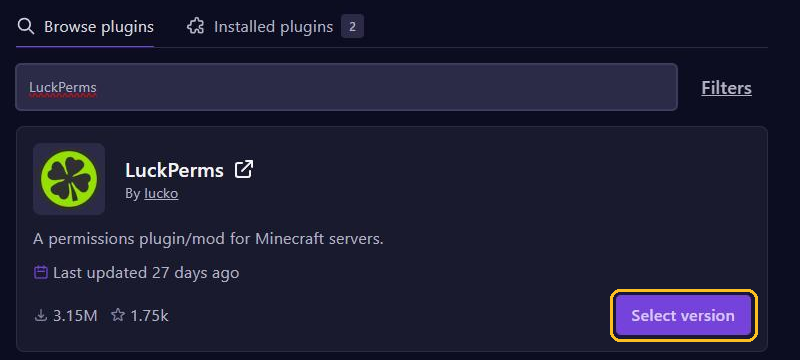
Open your server in the game panel, go to Plugins and search for LuckPerms. Click Select version, pick the newest version for your server type and click Install plugin. On a Paper or Purpur server that is the Bukkit version. Then restart your server.
On a Fabric or NeoForge server, LuckPerms is a mod. Look for it under Mods, or download the right version from luckperms.net and put it in the mods folder. See also Install mods, modpacks and worlds.
LuckPerms keeps your groups and permissions in a folder of its own, on Paper that is plugins/LuckPerms. Don't delete that folder, or you lose everything.
Typing commands
You can type every LuckPerms command in the console, without the /. In the game you type the same command with a / in front, so /lp instead of lp.
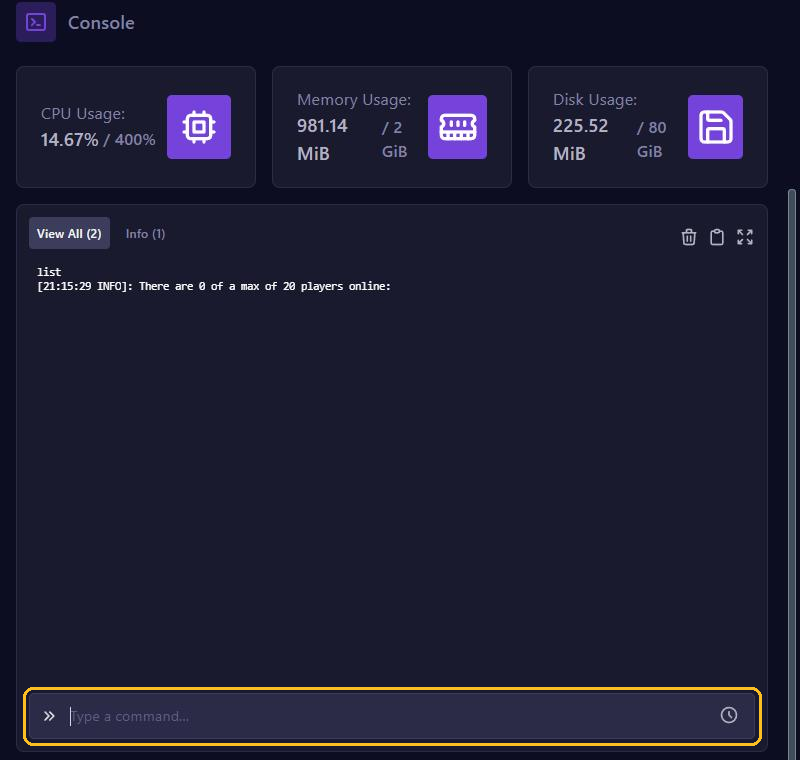
Want to use LuckPerms in the game as well? Then first give yourself all LuckPerms permissions from the console:
lp user YourName permission set luckperms.* trueCreating groups
Every player is in the default group automatically. Permissions for all players therefore go to that group. Next to it, create a group for each rank:
lp creategroup vip
lp creategroup moderator
lp creategroup admin
lp listgroups shows which groups exist.
Giving and removing permissions
You give a permission with lp group <group> permission set <permission> true. For example:
lp group moderator permission set minecraft.command.kick true
lp group moderator permission set minecraft.command.ban true
lp group admin permission set minecraft.command.gamemode true
lp group vip permission set essentials.fly true
The last example only works if you use EssentialsX. permission unset removes a permission again. If you set a permission to false, that group is denied it instead.
Which permission a command needs is usually in the plugin's documentation. You can also look it up: type lp verbose on PlayerName and let that player use the command. The console then shows which permissions the server checks. Turn it off afterwards with lp verbose off.
Letting ranks build on each other
A higher rank should be able to do everything a lower rank can. You arrange that with inheritance: a group gets another group as its parent.
lp group vip parent add default
lp group moderator parent add default
lp group admin parent add moderator
Now admin has all of moderator's permissions, and vip and moderator have all of default's. So you give a permission to one group only, and the higher ranks get it automatically.
Giving players a rank
lp user Steve parent set vip
lp user Alex parent add moderator
parent setputs the player in this group only and removes the player from every other group.parent addadds a group and leaves the other groups alone.lp user Alex parent remove moderatortakes someone out of a group again.lp user Alex infoshows which groups someone is in.
A player name doesn't work? Then let that player join your server once first.
A prefix in the chat
A prefix shows everyone in the chat which rank someone has, like [Admin] Steve. You set a prefix per group:
lp group vip meta setprefix 10 "&a[VIP] "
lp group moderator meta setprefix 50 "&9[Mod] "
lp group admin meta setprefix 100 "&c[Admin] "
The number is the priority. If a player inherits several prefixes, the highest number wins. So an admin gets [Admin] and not [Mod]. The codes &a, &9 and &c make the text green, blue and red.
LuckPerms doesn't put the prefix in the chat by itself. For that you need a chat plugin, such as EssentialsX Chat or VaultChatFormatter. Those read the prefix through Vault, so install Vault as well. Type vault-info in the console to check that Vault gets its data from LuckPerms. If a plugin isn't listed under Plugins, upload the .jar file yourself: see Install plugins.
Rather click? The web editor
Type lp editor in the console. You get a link to the LuckPerms web editor. Open that link in your browser and change your groups, permissions and prefixes in a few clicks. Click Save when you are done. If the editor or the console then shows a command, run it in the console.
Tips
- Never give a group the
*permission. Everyone in that group could then do anything, including making themselves admin. - Don't make staff operators; put them in a group instead. By default an operator can do almost anything, including things you didn't intend.
- Want to promote players step by step? Create a track with
lp createtrack staff,lp track staff append moderatorandlp track staff append admin. Then promote someone withlp user Steve promote staffand move someone a step back withlp user Steve demote staff. - Running several servers behind Velocity? Install LuckPerms on every server and let them share one MySQL database. You create it under Databases.
- With the default storage your LuckPerms data sits among your server files, so a backup keeps it too.