Built a great world in singleplayer, or playing on Realms right now? Then you can put that world on your own server, so your friends can play on it too.
1. Find and zip the world
Singleplayer worlds are on your computer in the .minecraft/saves folder. Every world has a folder of its own there.
- Close Minecraft, so your world is fully saved.
- Press the Windows key + R, type
%appdata%\.minecraft\savesand press Enter. On a Mac, the folder is~/Library/Application Support/minecraft/saves. - Right-click your world's folder and compress it into a .zip file.
Playing on Realms? Then first download the world from your Realm's settings, under the backups. After that, follow the same steps.
2. Upload and unpack
- Stop your server in the game panel.
- Go to Files and stay in your server's main folder.
- Click Upload, choose Upload Files and select your .zip file.
- Click the three dots ... next to the .zip file and choose Unarchive.
- Then delete the .zip file, so it doesn't take up space.
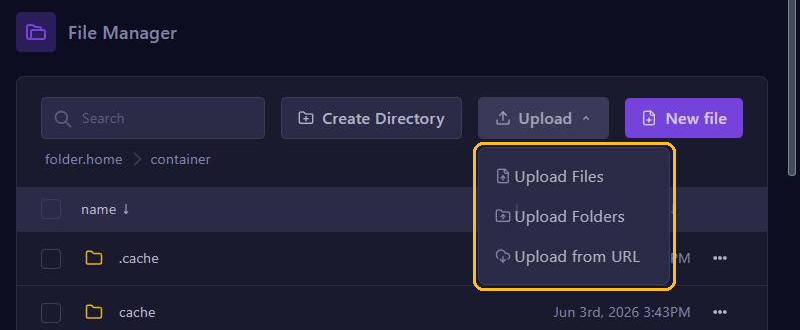
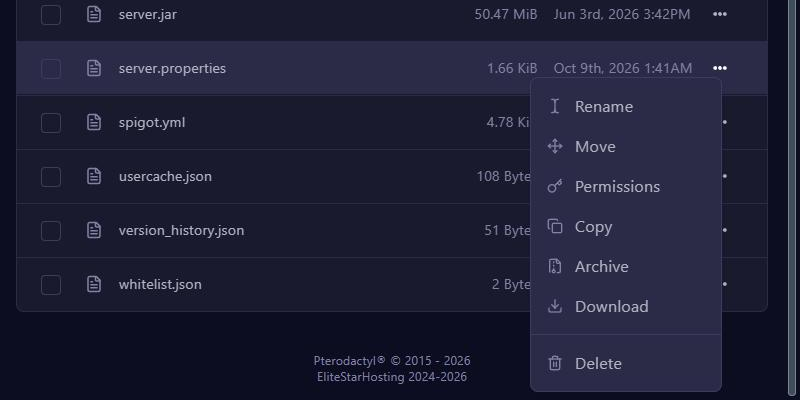
Is your world big? Then upload it over SFTP. That's faster, and the upload won't stop halfway. You read more about the File Manager in Manage files.
3. Check the folder
Open the unpacked folder. The file level.dat has to be directly inside that folder. Is there another folder with the same name inside it, and is level.dat only in there? Then use that inner folder. Otherwise the server doesn't see your world and creates a new one.
4. Point the server at your world
The server loads the world from the folder named in level-name. By default that is world.
- Go to Config and click server.properties.
- Find
level-namewith Search keys... and fill in the name of your unpacked folder, for examplemyworld. - Click Save and start your server.
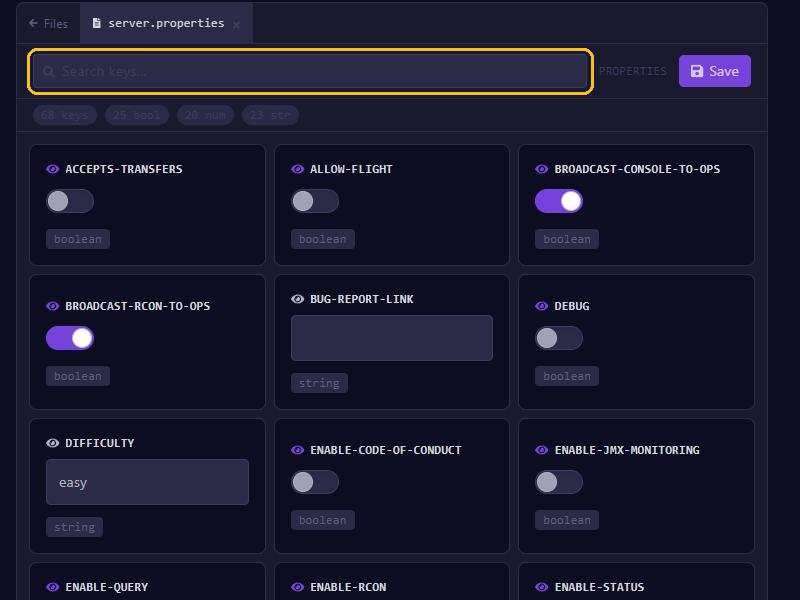
Your old world simply stays in the world folder. Want to go back? Then set level-name to world again. You read more about these settings in Set up server.properties.
Good to know
- The server converts a world from an older Minecraft version to its own version on the first start. That can't be undone, so always keep a copy, for example your .zip file or a backup.
- A world from a newer version than your server doesn't load. Switch your server to the same version first, see Change your Minecraft version.
- Does your server run Paper? Then Paper converts a singleplayer world to its own storage on the first start, including the Nether and the End.
- A Bedrock world, from a phone, console or Windows, doesn't work on a Java server. Convert it first with Chunker, a free program that converts worlds between Java and Bedrock. Choose your server's Java version as the output.
- Rather start completely fresh? Then read Create a new world.