To play on your Minecraft server you need its address, including the port. Below you read where to find it, how to connect and what to do when it doesn't work.
Your server's address
Open your server in the game panel. The address is at the top, for example gnode1.elitestarhosting.com:25616. The number after the colon is the port. It is part of the address: without the port, Minecraft can't find your server.
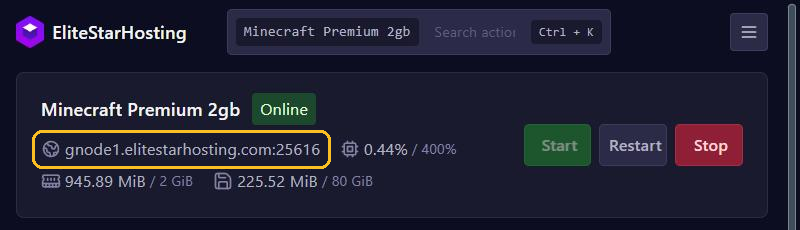
The status is next to your server's name. Online means your server is ready for players. Just started it? Then wait until it says Online.
Connecting with Minecraft Java Edition
- Start Minecraft on the same version as your server.
- Click Multiplayer and then Add Server.
- Under Server Name, fill in any name you like, and under Server Address the full address with the port.
- Click Done and double-click your server in the list.
Only want to connect once? You can also use Direct Connection.
Players on Bedrock Edition, such as on a phone, tablet or console, can only join a Java server with Geyser. See Let Bedrock players join with Geyser and Floodgate.
An easier address
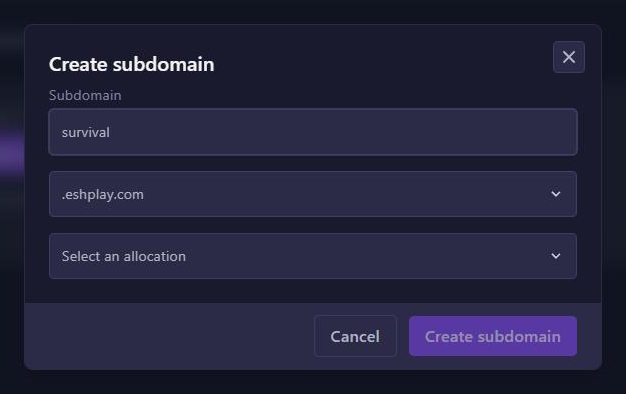
An address with a port is hard to remember. With a free subdomain, such as survival.eshplay.com, Java players connect without a port. Have a domain name of your own? Connect it through Ports and allocations.
Error messages and how to fix them
Can't connect to server, Connection refused or Connection timed out
Minecraft can't reach your server. Go through these points:
- Is your server Online? It takes a moment after a start, with mods sometimes a few minutes. The console shows
Doneas soon as players can join. - Is the address right? Check the port and make sure there is no space before or after it.
- With Connection refused, the server is usually off or the port is wrong.
- Can other players connect? Then this player's network blocks the connection, for example at school, at work or through a VPN. Try another network, such as your phone's hotspot.
Unknown host or Can't resolve hostname
Minecraft can't find the address. Usually it is a typo. Did you just set up a subdomain or your own domain? Then it can take a few minutes before it works. In the meantime, connect with the address and port from the panel.
Outdated server, Outdated client or Incompatible client
Your game runs a different Minecraft version than the server. In the server list, the server's version number then shows in red.
- Outdated server! I'm still on ...: your game is newer than the server.
- Outdated client! Please use ...: your game is older than the server.
- Incompatible client! Please use ...: your game has a different version than the server.
The version after the message is the server's version. Fix it in one of these ways:
- In the Minecraft Launcher, pick an installation with the server's version under Installations, or create one with New installation.
- Switch the server to your version. See Change your Minecraft version or server type.
- Does your server run Paper or Purpur? Then install the plugins ViaVersion and ViaBackwards. ViaVersion lets in players with a newer version, ViaBackwards also players with an older version.
You are not white-listed on this server!
The whitelist is on and this player is not on it. Add the player with whitelist add PlayerName in the console. See Operators, whitelist and bans.
You are banned from this server
This player is banned. Not what you intended? Lift the ban with pardon PlayerName in the console.
The server is full!
The maximum number of players has been reached. Raise max-players in server.properties. Keep in mind that more players also need more memory.
Failed to verify username! or Invalid session
Minecraft couldn't check the account. Close Minecraft and the launcher completely, log in again and try once more. With an unofficial launcher, without a bought account, you can't join a server that has online-mode turned on. Leave that setting on for safety.
Errors about mods
Does your server run mods or a modpack? Then your own game needs the same mod loader and exactly the same mods, in the same versions. Otherwise the server turns you away with a message about missing or mismatched mods. For a modpack, use the same version as the server.
Timed out while playing
Does the connection drop while you play? Then the server stopped responding for a while, for example because of heavy lag or a crash. Check the console to see what happened. Against lag, see our tips for a faster server.
Still stuck?
Contact support and tell us your server's name, the exact error message and what time it happened. That way we can look in the right place.