
Setting up your own FiveM server follows a fixed order: pick a plan, add a license key, create a database, set up txAdmin and add your scripts. Below is each step, from order to first players. Every step links to the full guide.
1. Pick a FiveM plan
Our FiveM servers run in Amsterdam on AMD Ryzen 9 9950X processors, with DDR5 memory, NVMe storage and DDoS protection. Plans start at €8.00 per month for 4GB RAM, 4 CPU cores and 80GB storage. Every plan includes 2 databases and 7 backups.
How much RAM you need depends mostly on your scripts. 4GB is a fine start. Building a roleplay server with a framework and lots of scripts? Then pick more. You can upgrade at any time and keep your files. See also How much RAM does your game server need?
Order your plan on the FiveM page. Your server is ready within minutes of ordering, and you log in to the game panel with your client account. Want to look around first? Try FiveM free for 24 hours with the free trial. After that, the server and all its files are removed.
2. Get a license key
A FiveM server won't start without a license key from Cfx.re. You create the key for free in the Cfx.re portal with your Cfx.re account. It starts with cfxk_.
- In the game panel, go to Startup.
- Replace the default value in FXSERVER LICENSE KEY with your own key.
- Restart your server.
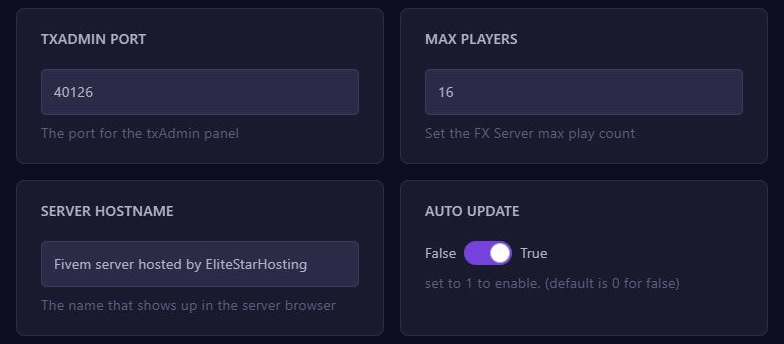
On every start, the panel copies the key, SERVER HOSTNAME and MAX PLAYERS from Startup into your server.cfg. So always change these three under Startup. If you only change them in the server.cfg or the server.cfg editor, they are overwritten on the next start.
More in Set up your FiveM server: license key, name and player slots.
3. Create a database
Frameworks such as ESX, QBCore and Qbox, and many single scripts, store their data in a MySQL database. Create it before you set up txAdmin, because a framework recipe asks for it. Go to Databases and click New Database. The details then appear in the list, and you find the password under Database Details. See also Create a MySQL database.
Not using a recipe? Then you connect the database yourself with oxmysql, as explained in Connect a database to your FiveM server (oxmysql).
4. Start your server and set up txAdmin
txAdmin is the management panel built into FXServer, FiveM's server software. On our servers it is always on.
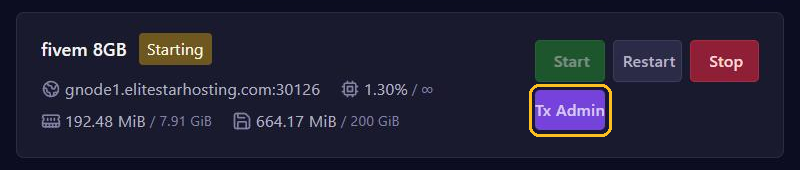
- Click Start, then Tx Admin at the top of your server page.
- Enter the PIN from the console, link your Cfx.re account and choose a password.
- Choose a recipe or your existing server files.
A recipe installs a complete base for you. You enter your license key, plus your database details for a framework, and click Run Recipe. The popular recipes include ESX Legacy, Qbox and a basic server without a framework. Qbox runs most QBCore scripts. There is no separate QBCore recipe in the list. Got a recipe from someone else? Import it by its URL.
Coming from another host? Use the Importer or let us move your server for free. More on txAdmin in Open and use txAdmin.
5. Add scripts and configure your server.cfg
In FiveM, scripts are called resources: folders with an fxmanifest.lua inside. Upload them through Files or SFTP to the resources folder. Then, in the server.cfg editor, type the folder name under Resources and click Add. Resources start from top to bottom, so put oxmysql and your framework at the top.
Project Name, Project Description and Tags decide how your server shows up in the server list. Lines that have no field of their own go in through Manual Edit. All details are in Install scripts (resources) and edit your server.cfg.
6. OneSync and player slots
For 32 players or more, OneSync has to be on. txAdmin turns it on by default. You find the setting in txAdmin under Settings, tab FXServer. If you add an onesync line to your server.cfg yourself, txAdmin comments it out when the server starts. So only set OneSync in txAdmin.
After that, two things decide how many players can join:
- MAX PLAYERS under Startup. A new server is set to 10. Change it to the number you expect.
- Your license at Cfx.re. With OneSync, FiveM is free up to 48 players. For more, you need a paid Element Club subscription: Argentum goes up to 64 players, Aurum up to 128 and Platinum up to 2048. The last two numbers need OneSync Infinity.
7. Connecting: your first players
Players need a legal copy of GTA V (Legacy or Enhanced) on a Windows PC, plus FiveM from fivem.net. Your server address is in the game panel. Open FiveM, press F8 and type connect followed by your address:
connect gnode1.elitestarhosting.com:30126Once it is running, your server also shows up in the FiveM server list, under the name from SERVER HOSTNAME. Want an address of your own, such as play.yourdomain.com? Create it with the Record Generator, see Ports and allocations.
Still building and want to keep everyone out? Turn on the Allowlist in txAdmin under Settings. There you can let in only players with a certain role in your Discord server, for example, or admins only.
8. Keep FXServer up to date
By default, AUTO UPDATE under Startup is set to True and FX SERVER VERSION to latest. Your server then fetches the newest version itself when it starts. Want to decide when you update? Set AUTO UPDATE to False, enter a fixed version, and after a backup install Latest Recommended through Artifacts. See Update FXServer (artifacts) and clear the cache.
Common errors when setting up a FiveM server
The last lines in the console almost always show what went wrong.
Could not authenticate server license key: the key is wrong or no longer exists. Create a new one and enter it under Startup.- txAdmin won't open at localhost:40120: that address only works when FXServer runs on your own PC. Use the Tx Admin button, or your server address with the port from TXADMIN PORT.
- Only 10 players can join: raise MAX PLAYERS under Startup.
Couldn't find resource: the folder name doesn't match the name under Resources.- oxmysql errors: check your
mysql_connection_stringand that oxmysql starts before your framework. - Old or broken textures after an update: stop your server and clear the cache with Clear Cache.
Need help?
Stuck? Send the error from the console through support or on Discord. We are available every day from 09:00 to 24:00 (CET).
Read also: What is FiveM? How it works and what a GTA 5 server costs.